¶ Calendar & event management 
This widget lets you easily create and edit specific events  . Whether you need to record leave or breakdowns, schedule maintenance, or configure exceptional openings such as overtime
  , managing your assets over time has never been so intuitive.
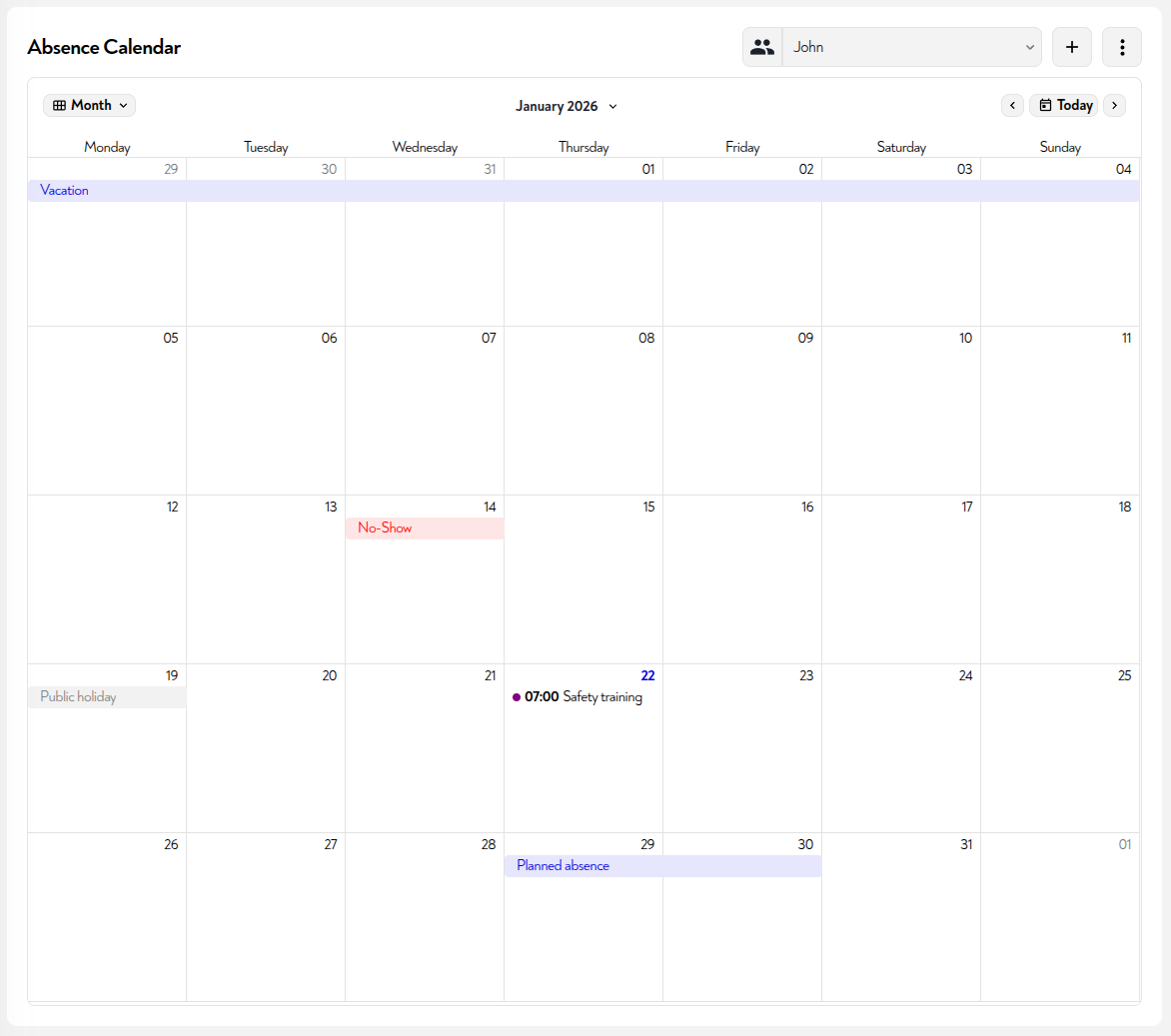
It lets you view your teams' schedules, site openings/closures, and exceptional events (leave, absences, etc.)
 The calendar dynamically adapts to changes and highlights potential conflicts.
¶ How to configure an event
To add a new event, just click the "+" at the top right of your calendar. You can also configure it by dragging and clicking directly on the desired time slot. You will then see a pop-up that lets you configure your event.
You can then define:
- the name of your event
- its start and end date/time
- any other fields chosen when configuring the widget
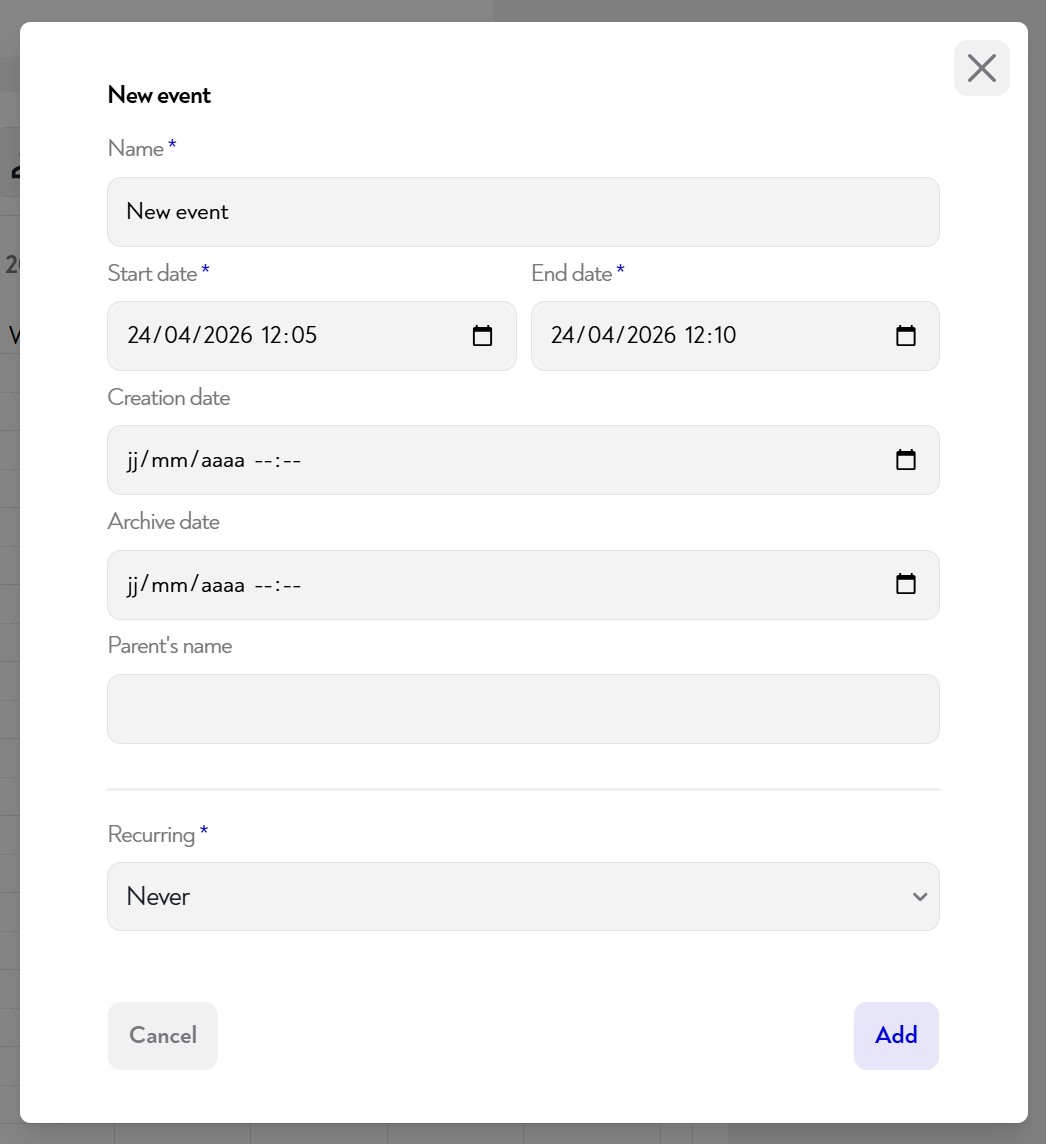
You can also create a recurrence for your event if you want it to repeat.
The available recurrence options are:
- Daily : the event repeats every day
- Weekly : the event repeats every week on the same days
- Monthly : the event repeats every month on the same date
- Yearly : the event repeats every year on the same date
For each type, you can also define a recurrence end date.
When editing a recurring event, you can choose to edit only this event or all events in the series.
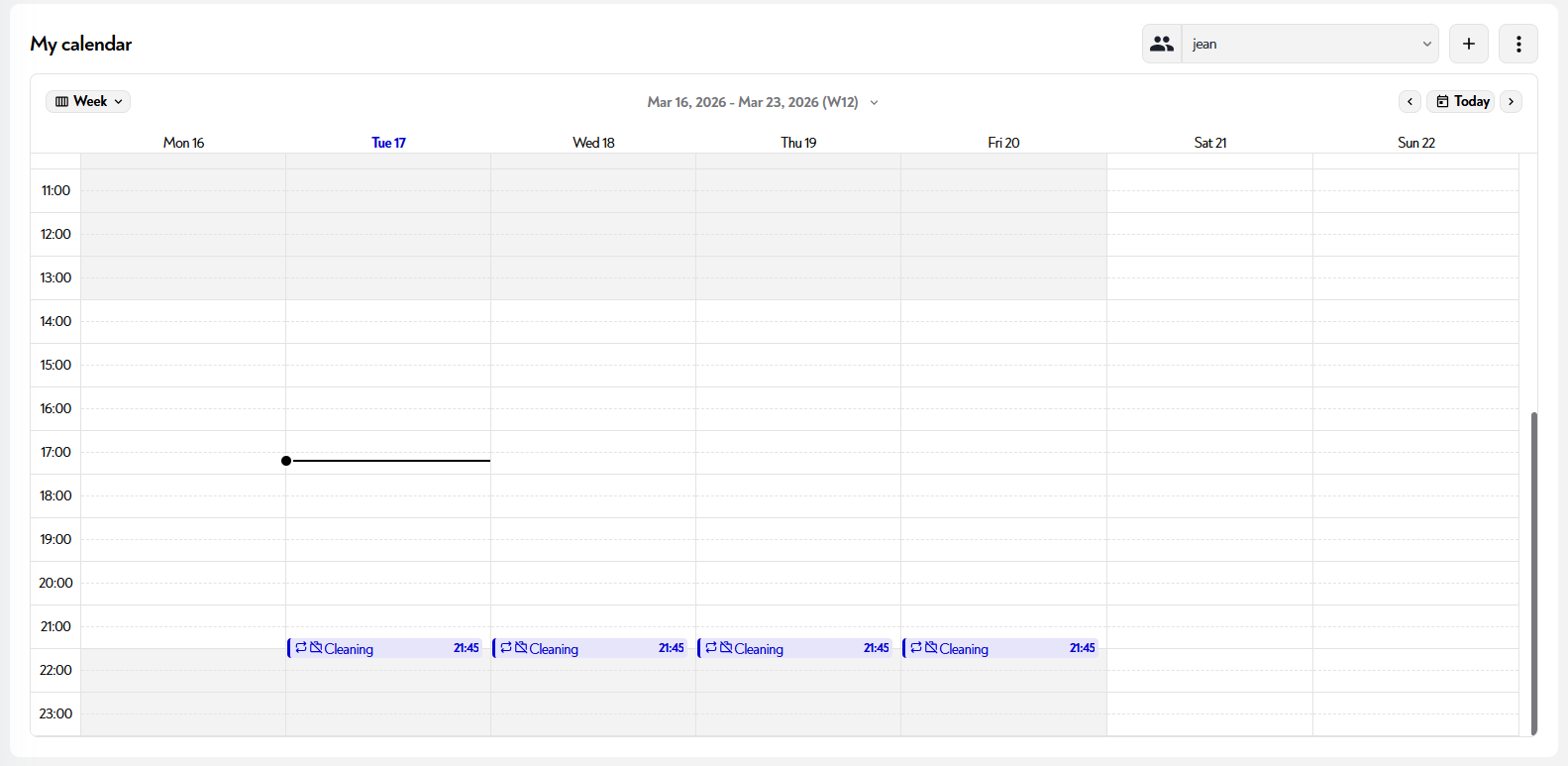
Your event is then displayed. To edit it, simply double-click the event and the edit pop-up appears.
Also, if you want to view someone else's schedule, click the chevron to the right of the asset type currently displayed.
Finally, you can change your calendar view by clicking at the top left, where your current view is shown ("week" in this case). You can display a day, week, month, year, or agenda view.
🪄 Small tip: If you click "Today", you automatically return to the day view.
¶ How to delete an event
To delete an event, double-click it to open the edit pop-up, then click "delete" at the bottom of the pop-up.
Does this page seem unclear or do you need help? Feel free to contact us at support@zozio.tech !