¶  Module description
The Gantt widget is divided into four main parts :

¶ Widget header
It contains the menus, from left to right, to:
- switch plans
- search
- start automatic optimization
- compare/publish a plan
- other options (undo, redo, filter)
¶ Tabs bar & KPIs
On the left, the tab bar lets you switch between:
- View by order Order overview: displays all scheduled orders (production, repair, shipping, etc.). Unfolding an order shows the list of its tasks.
- View by resource (machines, tools, operators, workstations, etc.): displays the list of tasks associated with each resource (or group in the case of multi-assignment).
On the right, useful indicators help assess scheduling quality.
- OTD (On-Time Delivery): number of orders not late / total number of orders.
- Lead time
Overhead : average lead time (in working and closed hours). - Delay
Overhead : average/total delay time (in working and closed hours). - Conflict rate : number of tasks with problems / total number of tasks.
Overhead : non-assignment rate, over-assignment rate, unavailability rate.
¶ Gantt section (top)
To view the calendar positioning of orders and their associated tasks.
¶ Load / Capacity section (bottom)
Displays the evolution of load versus capacity over time for each resource.
It is possible to set their grouping parameters : by shift, skill, machine type, status, etc.
¶  Main features
¶  Color codes
A simple color code identifies problems and warnings:
¶ On the Gantt section
- Green : everything's fine
- Orange : delay
- Red : Conflicts (non-allocation, over-allocation, etc.)
 Double-clicking on a colored task or hovering over the symbols displays the details.
¶ On load/capacity
- Green : remaining capacity
- Orange : 100% capacity
- Red : resource overload
¶  Add /
Add /  Edit order
Be careful: all changes are saved to your draft. To share them with the rest of the team, don't forget to publish them!
- To add an order : Click on the button + next to the column names in the Gantt view (tab Orders).
- To edit an order : double-click on it.
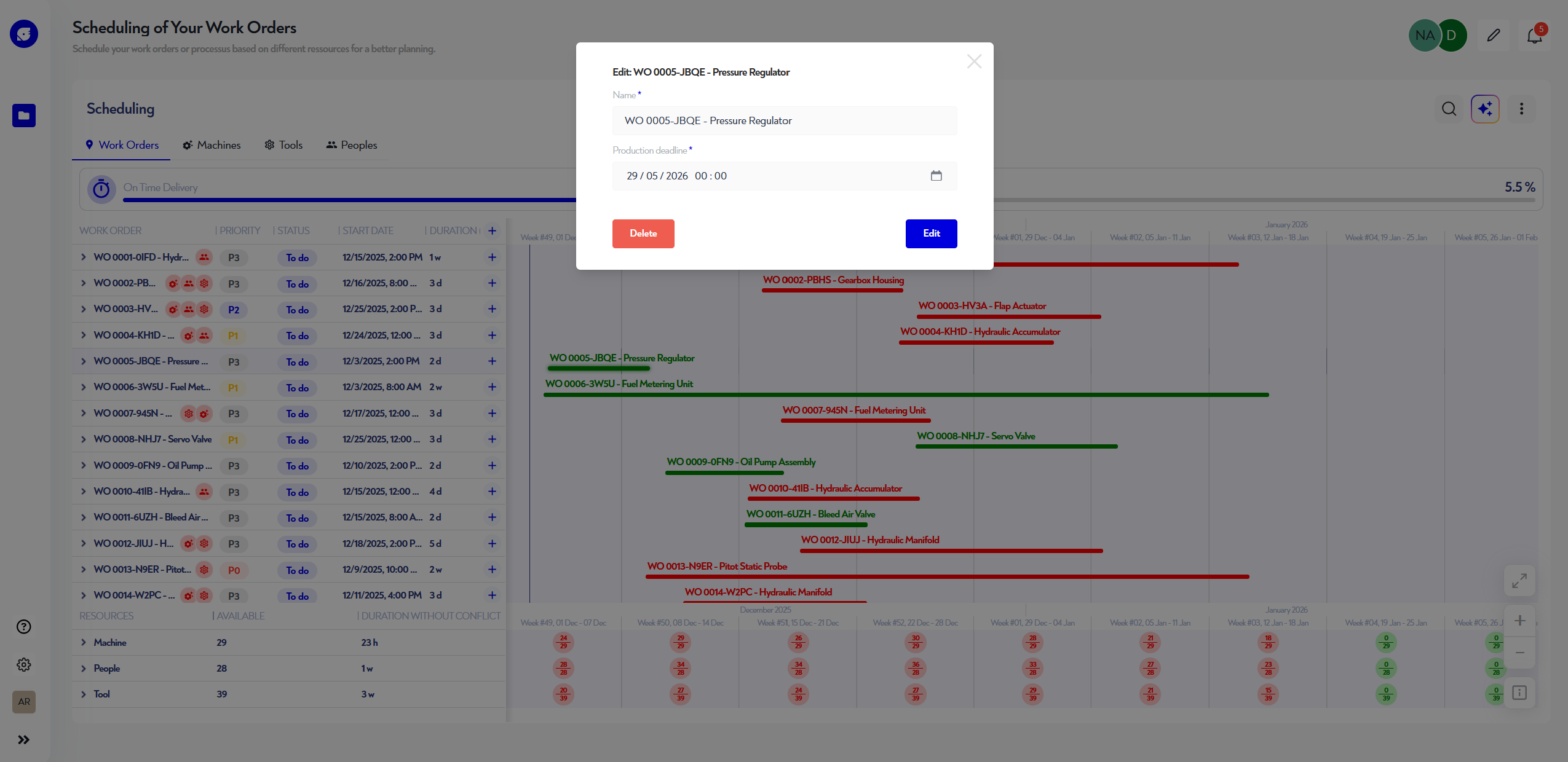
A pop-up window opens:
- Mandatory fields: name and deadline.
→ If scheduled end date exceeds deadline → order considered late. - Tab Other properties for additional fields.
Without opening the pop-up :
- Drag & drop to reposition an order in the Gantt.
¶ Add / Edit task
Be careful: all changes are saved to your draft. To share them with the rest of the team, don't forget to publish them!
To add a task : button + to the right of the order in the Gantt view.
To edit a task : double-click on it.
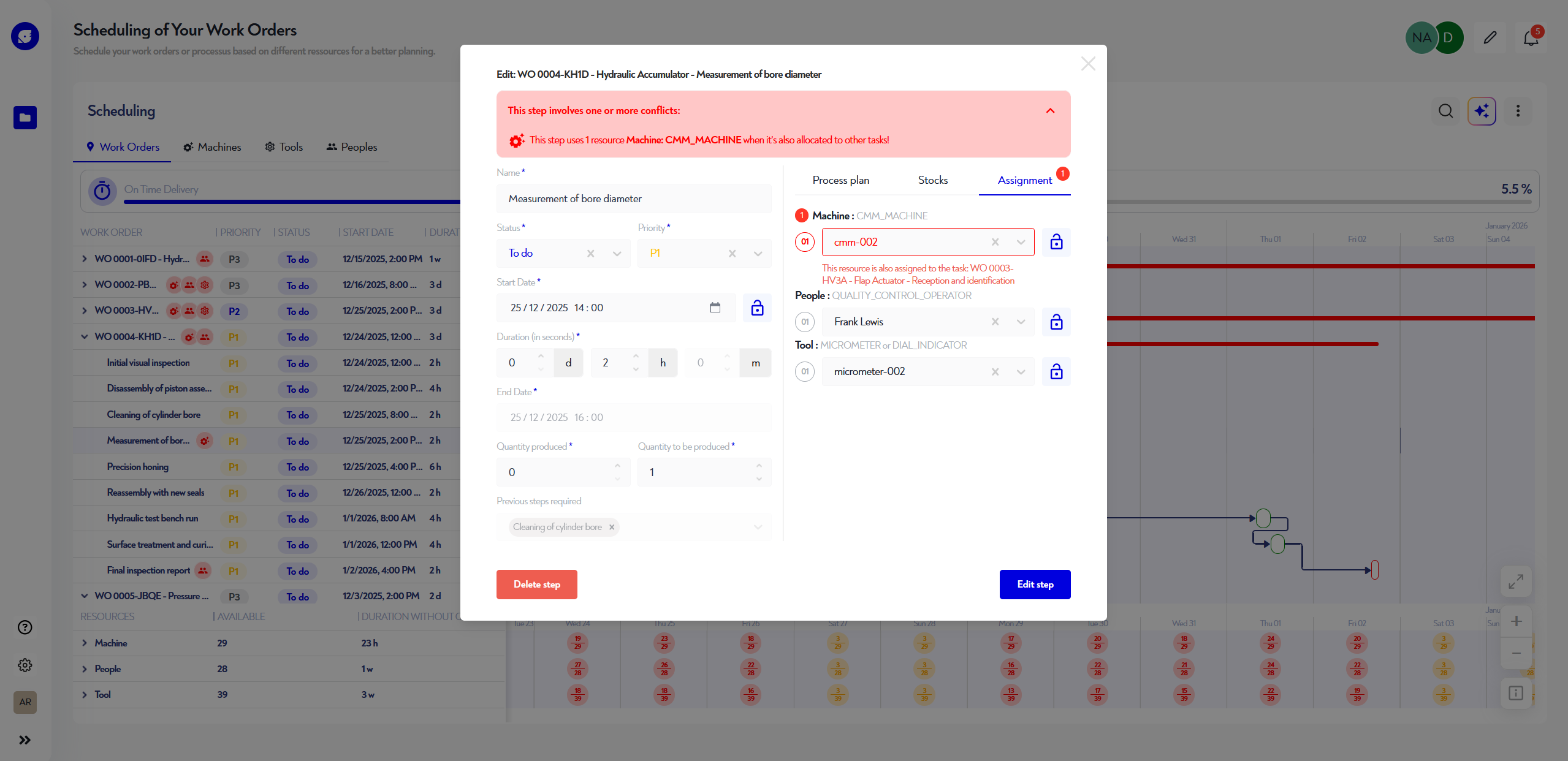
The pop-up contains :
¶  Problem banner
Displays errors and warnings: non-allocation, conflicts, delays, etc.
¶  Left section - Task properties
Edit properties required for scheduling :
- name
- priority
- Start date
- date blocks for Robin.Solver
- quantity produced / total
- duration
- other business properties
¶  Right-hand section - Resources / inventory management
Three tabs :
- Process plan : defines the resources required + their constraints (e.g. "welding" skill).
- Stocks : declares inventories consumed and produced.
- Allocation : Select a specific resource by slot (e.g. assign the Thomas operator).
→ Allocations can be locked. In this case, Robin.Solver cannot modify them.
¶  Quick modifications (without opening the pop-up)
- Moving by drag & drop (tasks to do only)
- Resize : grab an edge and pull (tasks to do only)
- Changing the quantity produced : via the triangle at the bottom of the task (tasks in progress only)
¶  Precedence constraints
- Create a constraint: keep clicking from the end of one task to the start of another.
- Delete: double-click on the arrow and choose delete.
¶ Compare and publish
By default, all changes are saved to your draft. To easily see the changes made and compare them with the current plan, click "Compare":
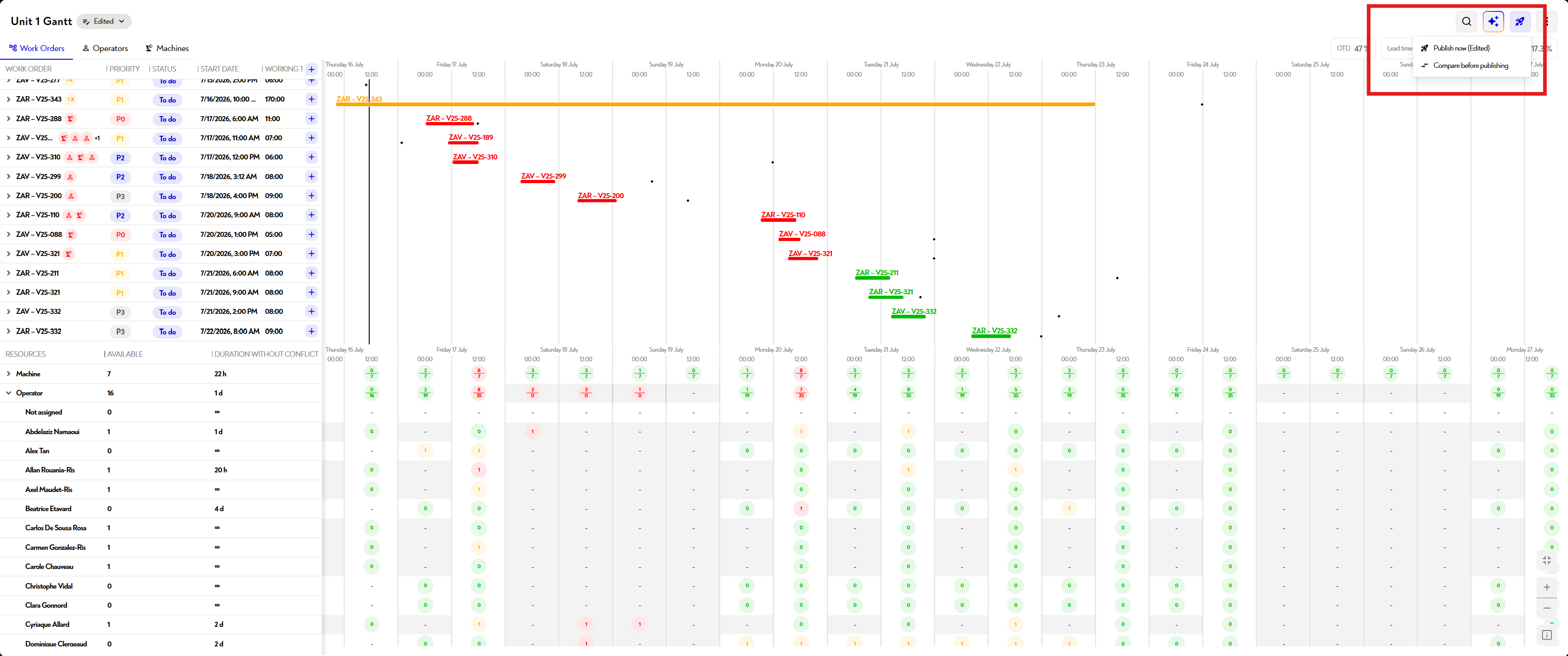
If you are sure, you can also click "Publish now".
If you decide to compare, the following pop-up opens:
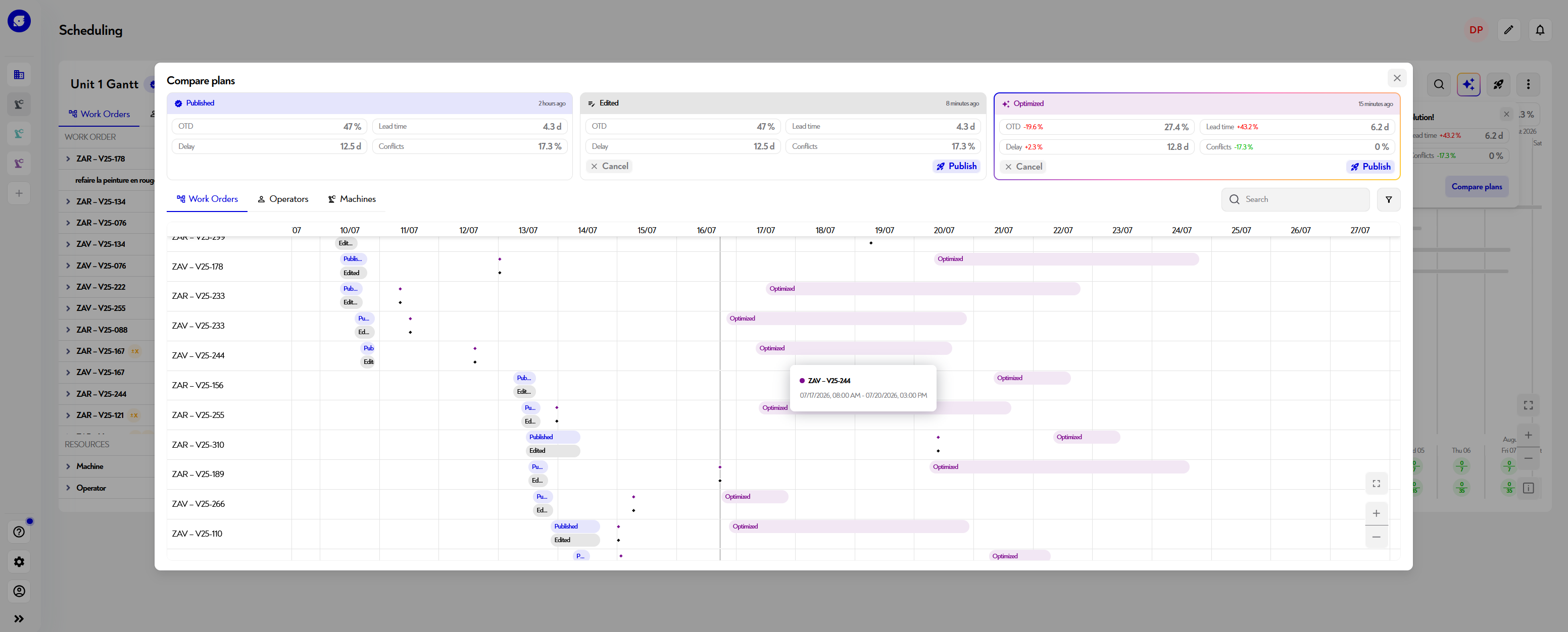
You can compare the following 3 versions of the plan:
- the latest published plan
- your changes
- the version optimized by Robin Solver
You can compare by view, by order, or by resources. You can also search/filter as elsewhere on the platform. At the top, you can see the indicator deltas compared with the latest published plan. You can choose to publish or cancel the changes/optimizations using the associated buttons.
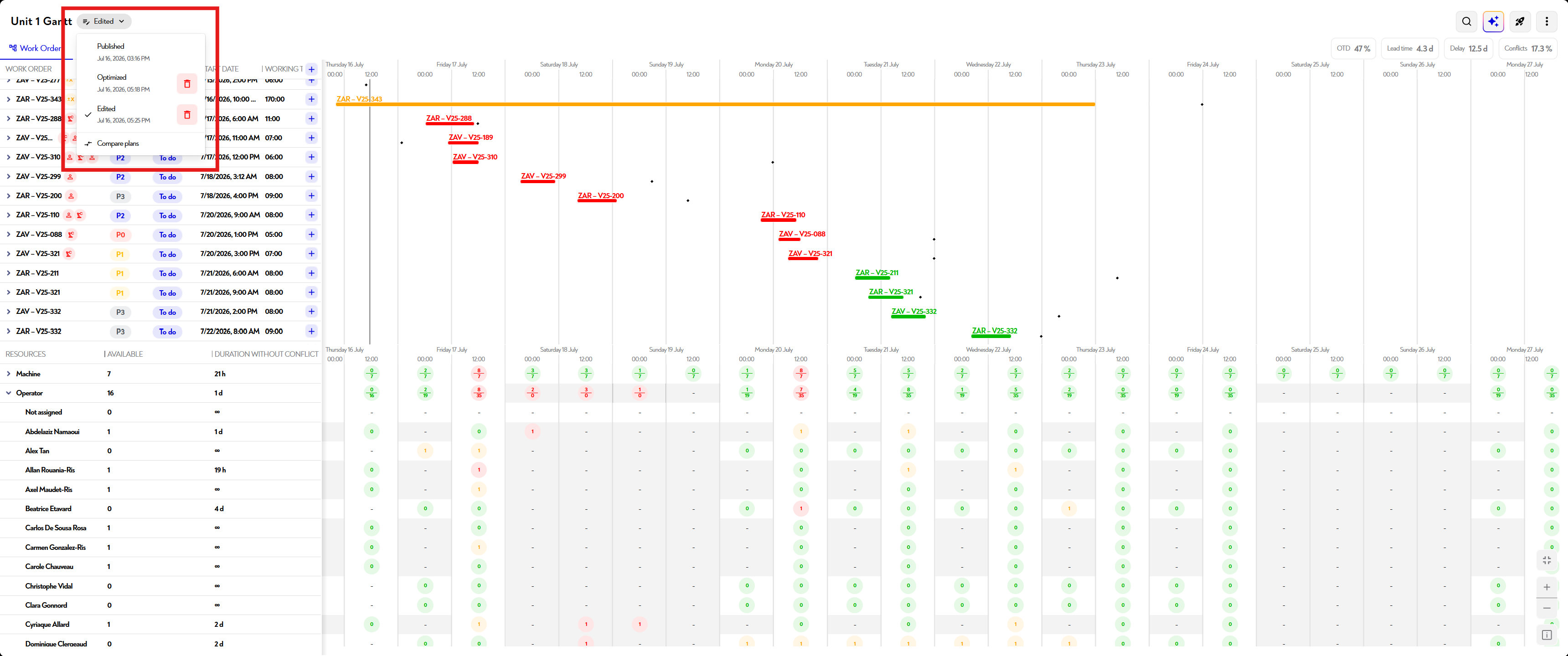
When you are on the Gantt widget, you can easily switch from one plan to another or delete them by clicking the plan selector at the top left:
¶  Robin.solver
Robin.solver is Robin's AI scheduling engine.
It generates optimized, consistent schedules that take account of business constraints.
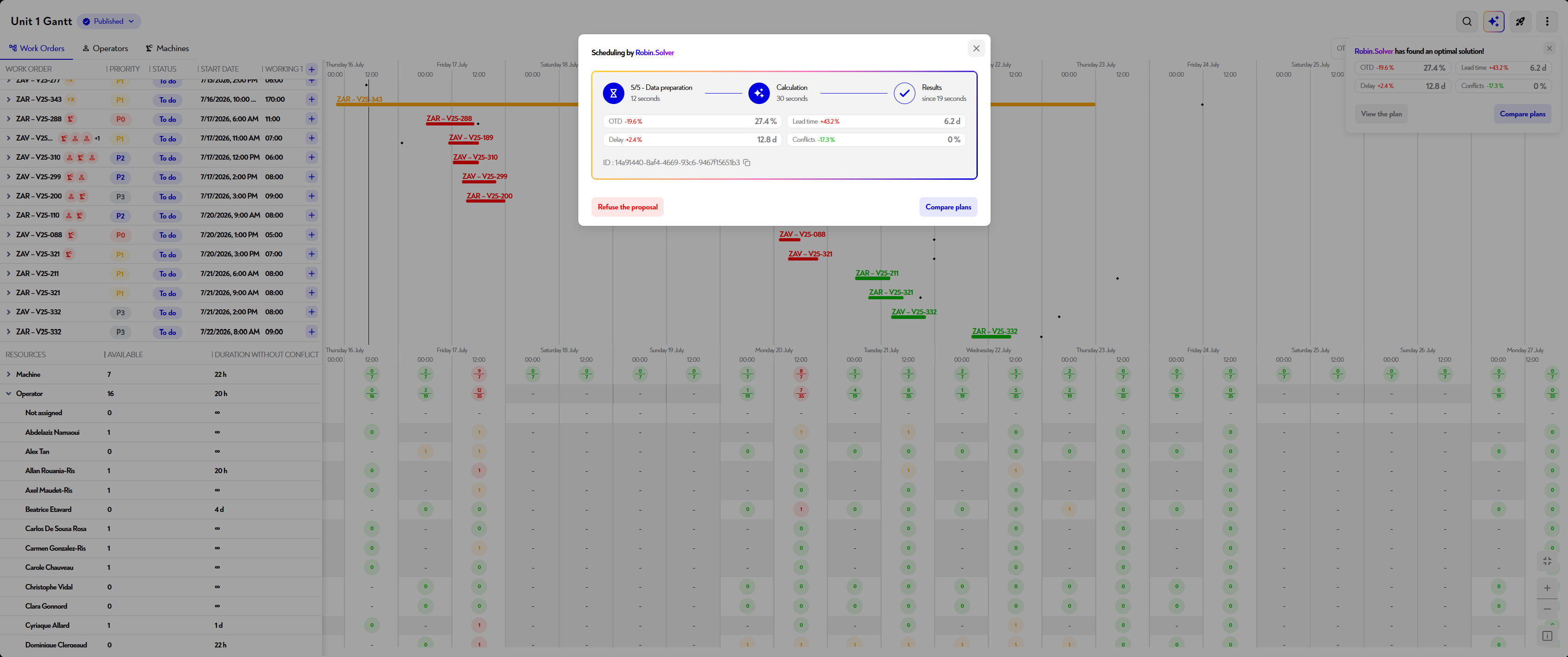
Access: magic button at top right.
¶ The 4 available options :
-
Automatic allocation
- Do not adjust dates
- Allocates resources optimally
- Respects locked allocations
-
Automatic scheduling
- Position tasks and allocate resources
- Respects precedence and locked elements
- Optimize according to parameters (e.g. maximize OTD)
-
Solvency check
- Checks whether scheduling is mathematically possible
- Propose solutions when a constraint is impossible to satisfy
-
Robin.Solver parameters
- Interface for defining optimal planning
- Weighting criteria or choosing a preset
¶ Other features
¶  Search
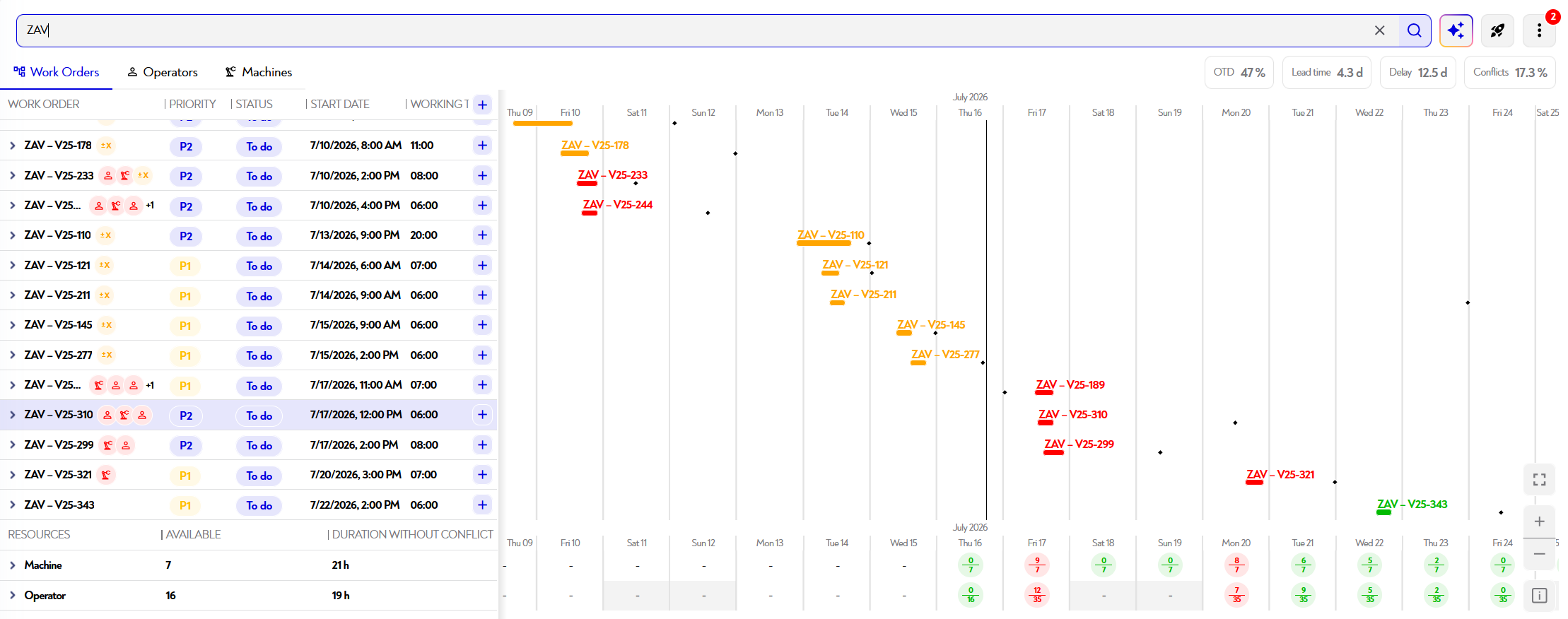
Accessible via the magnifying glass at top right.
Type all or part of the name of an order, task or resource to filter the display.
For more complex searches: use the filters.
¶  Filter
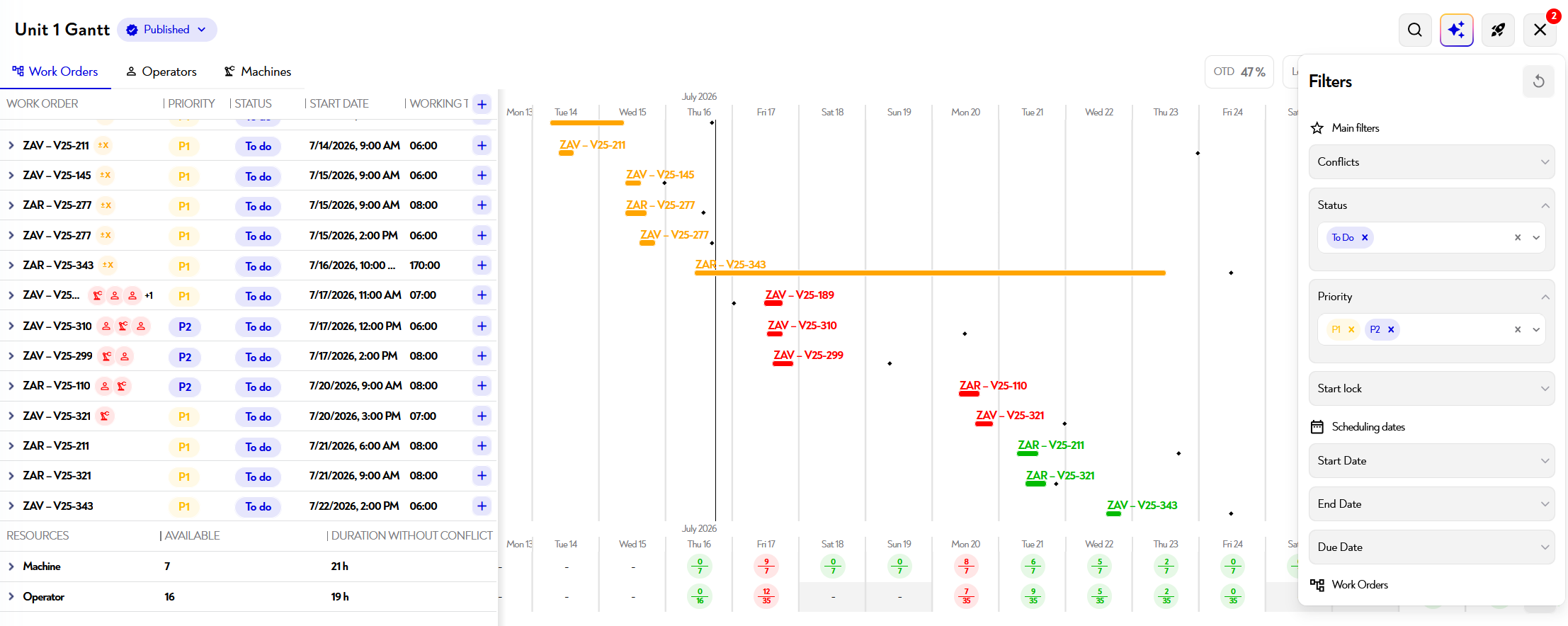
Button "..." → Filter.
A side menu allows you to select, property by property, the values to be retained.
No selection = show all.
¶  Sort
Sort
Click on a Gantt column:
- Ascending sorting
- Downward sorting
- Reset
¶  Navigation shortcuts
- Ctrl + wheel → zoom in / out
- Shift + wheel → horizontal scroll
- Wheel only → vertical scroll
- Right-click after selection → context menu :
- lock/unlock date
- increase/decrease priority
- resize late job (depending on speed)
- Ctrl + Z -> undo the last change in draft mode
- Ctrl + Y -> redo the last change in draft mode
Does this page seem unclear or do you need help? Feel free to contact us at support@zozio.tech !