Robin connectors allow you to interact directly with the platform's data and objects — assets, forms, IoT devices — from a workflow. They are divided into two categories: triggers (triggers) which initiate the workflow, and the actions which execute in response.
Required version: connectors and options marked with 🆕 (version 2026.6) require Robin 2026.6 or later. They are not available in earlier versions.
¶ Triggers
¶ Asset Modified
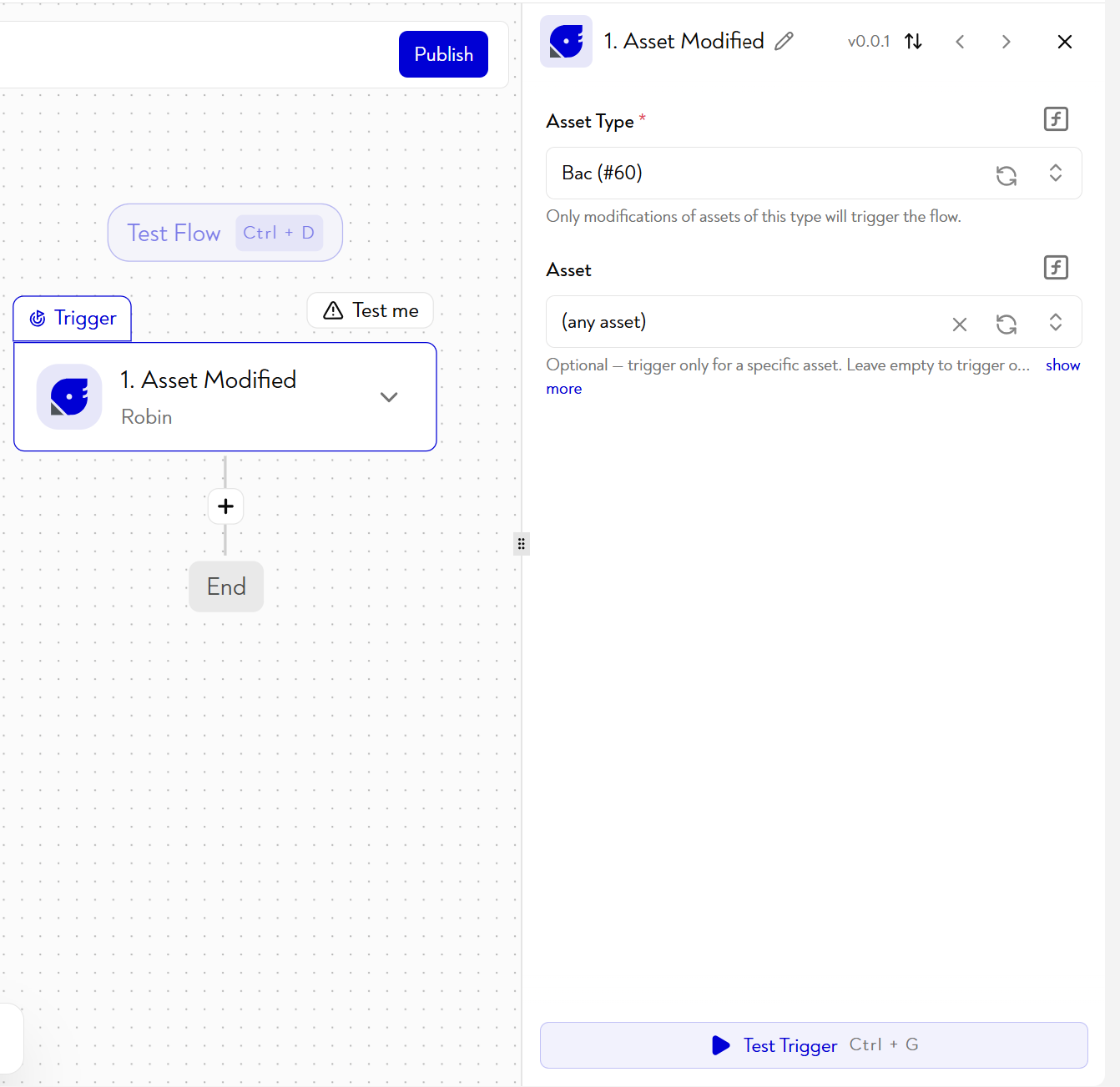
Role : Triggers the workflow as soon as an asset is created, modified or checked in in Robin.
Configuration
- Select the type of asset concerned: only modifications to this type will trigger the workflow.
- Select a specific asset (optional): leave empty to trigger on all assets of the type.
- 🆕 Select the Fields to watch (required, at least one field): the workflow is triggered only if at least one of the selected fields is modified. The list contains the fields of the asset type, as well as
position(location) andarchived(archive status) and, for order and task types,precedence(androutingfor task types).
This connector is particularly useful for reacting in real time to a change in business status, for example to update a work order on the ERP side as soon as a maintenance phase changes status, or to alert a quality manager when a batch is modified during manufacturing. It returns the modification date, the current fields of the asset, and, for modified fields, their previous value.
🆕 Available from Robin version 2026.6: the Fields to watch filter and the additional data below are not available in earlier versions.
Additional data returned (2026.6+)
archived: current archive status of the asset.position: current location (latitude,longitude,altitude;altitudemay be null if the information is unavailable).- For assets of type order and task :
precedence(list ofasset_idvalues for predecessor orders/tasks). - For assets of type task :
routing(task routing: stock and resources).
When any of these elements (archived, position, precedence, routing) is modified, it also appears in changes, with the same structure as the other fields:
{
  "asset_id": "A12345",
  "update_date": "2026-05-26T22:31:53Z",
  "archived": true,
  "position": { "latitude": 48.8570, "longitude": 2.3530, "altitude": 36.0 },
  "fields": { "text_1": "lorem ipsum", "num_2": 10 },
  "changes": {
    "archived": { "previous_value": false, "new_value": true },
    "position": {
      "previous_value": { "latitude": 48.8566, "longitude": 2.3522, "altitude": 35.2 },
      "new_value": { "latitude": 48.8570, "longitude": 2.3530, "altitude": 36.0 }
    }
  }
}
¶ Form Submitted
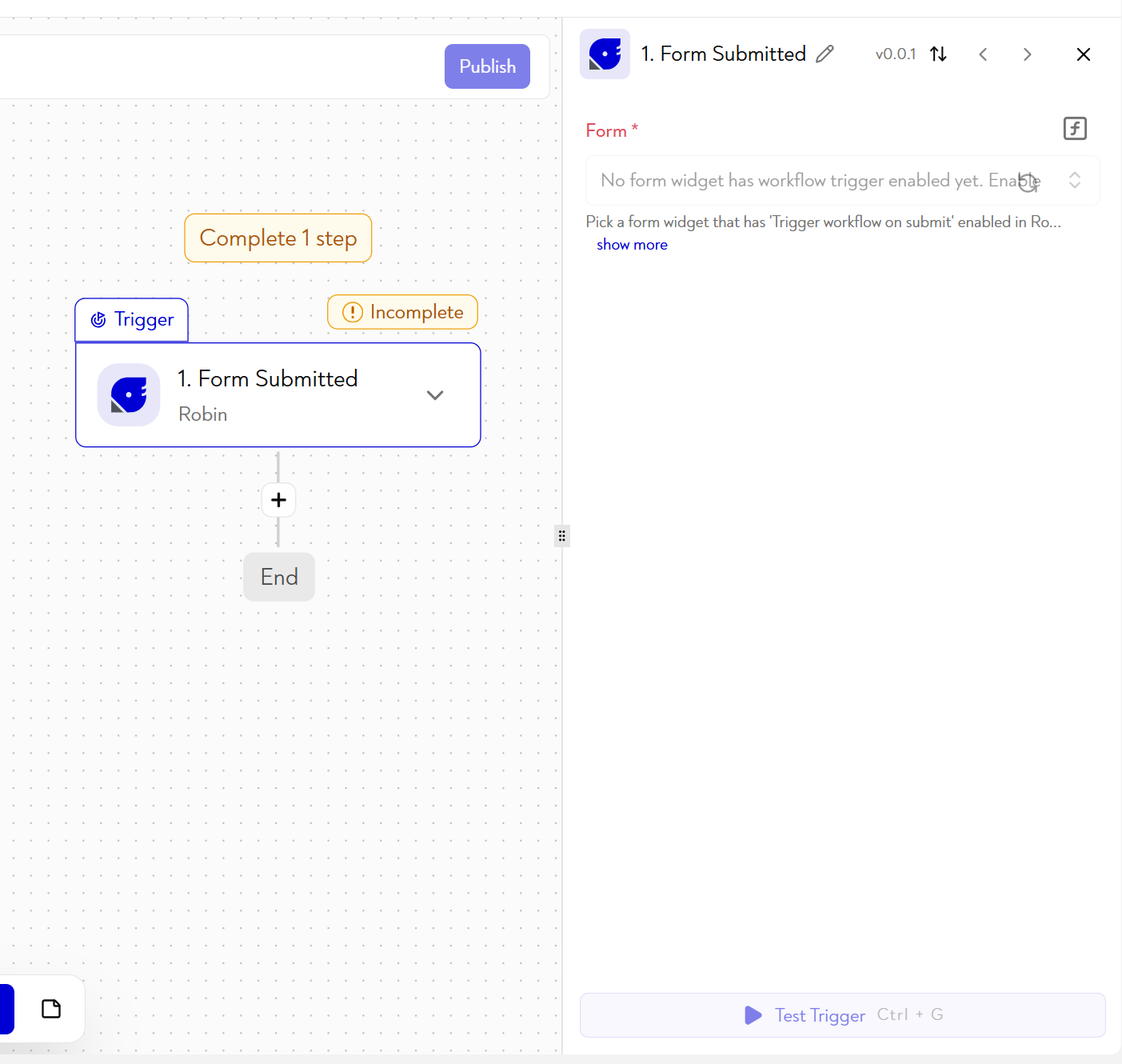
Role : Triggers the workflow when a Robin form is submitted by an operator.
Prerequisites: the relevant form widget must have the option “Trigger flows on submission” activated on the Robin side.
Configuration
Select the targeted form in the list of forms with the activated trigger.
This connector allows you to connect an automated process directly to an operator action, for example to launch a quality control task upon submission of an end of inspection form, or to create a traceability asset upon validation of a weighing form at the start of the batch. It returns the asset created or edited by the form, with all its fields as well as the submission date.
¶ Geofencing Event
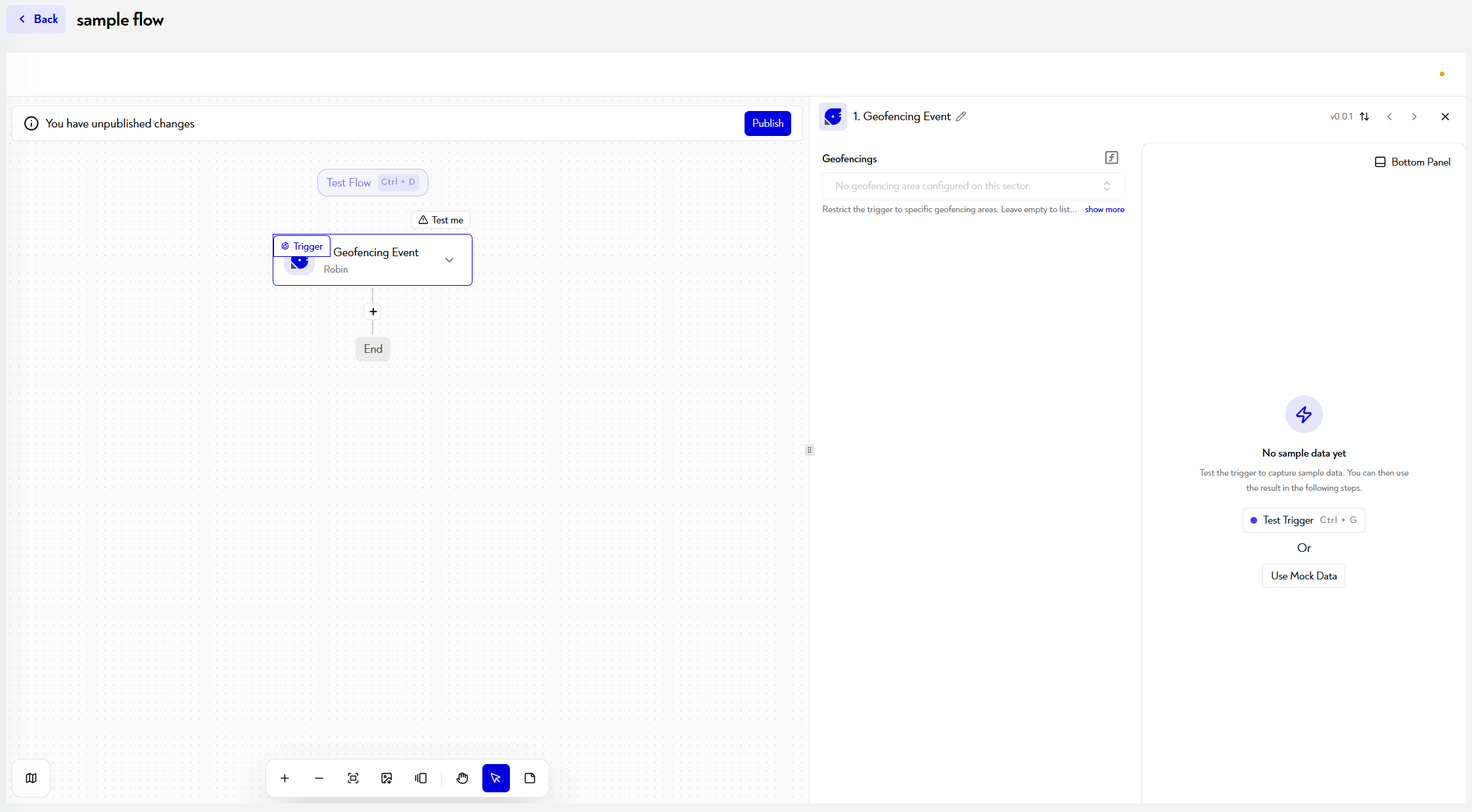
Role : Triggers the workflow when an IoT device generates a geofencing event, meaning when tracked equipment enters or leaves a configured geofencing zone.
🆕 Available from Robin version 2026.6. This feature is not available in earlier versions.
Configuration
- Select the geofencing zones to monitor (optional): a multiple-choice list displaying the zone names. Leave blank to trigger for all configured zones, except zones of type BLE Snapping (which are never offered or taken into account).
Only devices provisioned in the customer sector linked to the workflow connection trigger the workflow; events from another sector are ignored. The connector triggers once for each event matching the configuration.
Data returned
| Field | Type | Description |
|---|---|---|
device_uid |
text | UID of the device that generated the event. |
device_serial |
text | Serial number of the device. |
geofencing_id |
text | Identifier of the relevant geofencing zone. |
geofencing_name |
text | Name of the relevant geofencing zone. |
paired_asset_ids |
list of strings | Identifiers of the assets paired with the device at the time of the event (empty list if no asset is paired). |
{
  "device_uid": "001BC50C7100A513",
  "device_serial": "WZL-123456",
  "geofencing_id": "geo_42",
  "geofencing_name": "Warehouse Entrance",
  "paired_asset_ids": ["asset_123", "asset_456"]
}
This connector lets you respond automatically to equipment movements, for example by notifying the tool store when a tagged MRO tool enters the workshop zone, or by updating an asset as soon as a cart leaves a cosmetics production line.
¶ Device Button Press
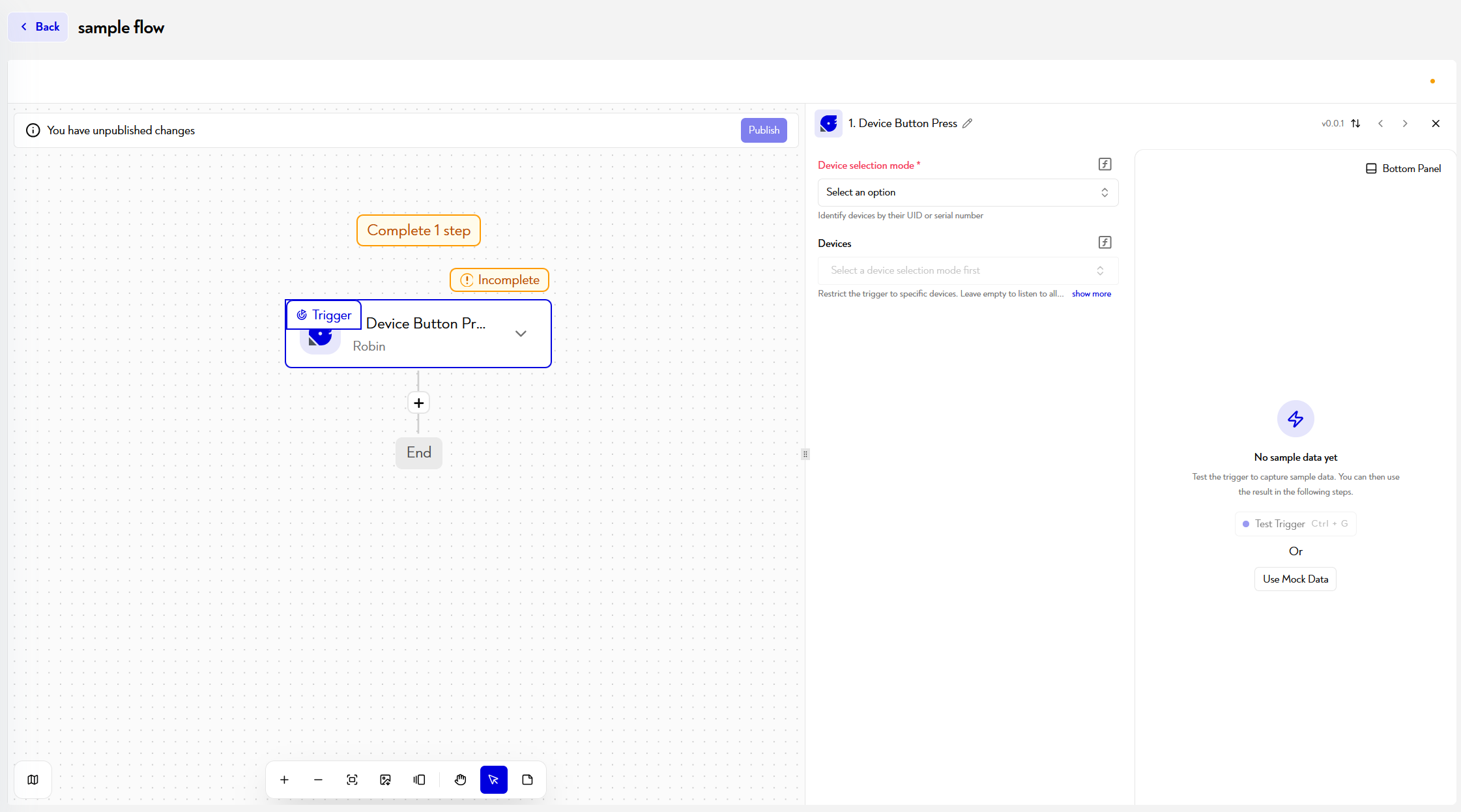
Role : Triggers the workflow when a button press is detected on an IoT device.
🆕 Available from Robin version 2026.6. This feature is not available in earlier versions.
Configuration
- Choose the device selection mode (required):
uidorserial. It determines whether the device list displays and stores the UID or the serial number. - Select the devices to monitor (optional): a multiple-choice list of provisioned devices compatible with button events. Leave blank to trigger for all compatible devices in the customer sector.
Only devices provisioned in the customer sector linked to the workflow connection trigger the workflow. Devices with one or more buttons are supported.
Data returned
| Field | Type | Description |
|---|---|---|
device_uid |
text | UID of the device. |
device_serial |
text | Serial number of the device. |
paired_asset_ids |
list of strings | Identifiers of the assets paired with the device when the button was pressed (empty list if no asset is paired). |
press_duration |
short, medium or long |
Duration of the button press. |
button_position |
top, bottom, left or right |
Button used; top for devices with a single button. |
{
  "device_uid": "001BC50C7100A513",
  "device_serial": "BTN-000123",
  "paired_asset_ids": ["asset_123", "asset_456"],
  "press_duration": "short",
  "button_position": "top"
}
This connector links a workflow to a physical interaction, for example to report a workstation issue with a long press on a tag, or to signal that a container is ready for collection with a short press.
¶ Robin Stocks
Note common to Robin shares: Fields marked in red in the control panel are mandatory. The options Continue on Failure and Retry on Failure (up to 4 attempts) are available for all actions and make it possible to manage the resilience of the workflow in the event of a one-off error (timeout, missing data, etc.).
¶ Create Asset
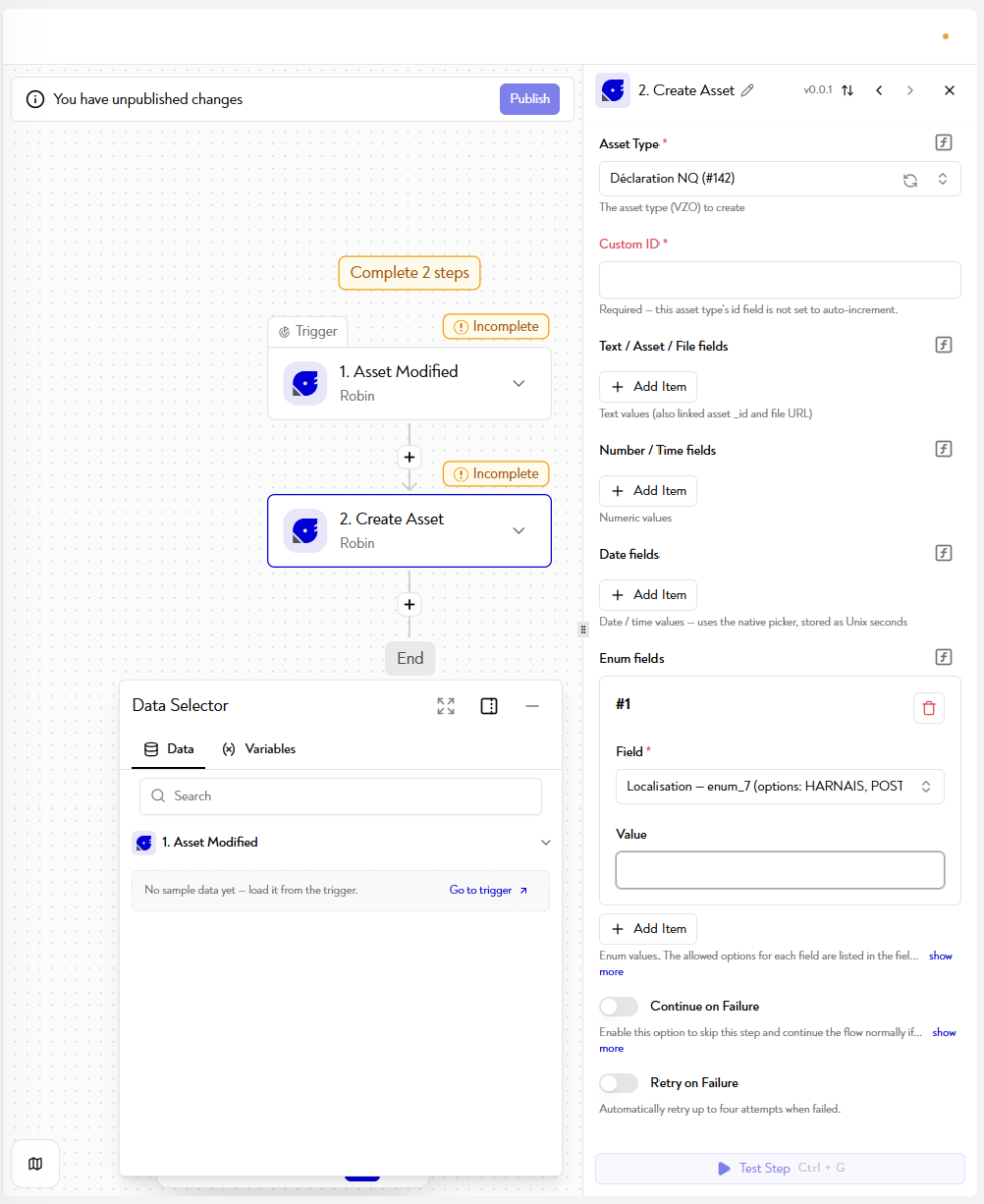
Role : Creates a new Robin asset of a given type, with the possibility of directly populating its fields upon creation.
Configuration
- Select the type of asset to create.
- Enter a Custom ID : mandatory if the asset type is not configured as auto-increment, optional otherwise.
- Complete the asset fields, organized by type:
- Text fields : text values.
- Number fields : numerical values.
- Date fields : date and time values, entered via the native selector or in ISO8601 (see https://en.wikipedia.org/wiki/ISO_8601).
- Enum fields : values from a closed list — the options available for each field are listed directly in the field label.
- For each field, click on + Add Item, select the Field target and fill in the Value — static or dynamically mapped from a previous step via the Data Selector.
- Asset types order and task cannot be created with this action (it fails with the error
ASSET_TYPE_NOT_ALLOWED): use Create Order and Create Task.
This action is typically used in response to a form submission, for example to automatically generate a pre-populated declaration of non-conformity upon receipt of a defective part in MRO, or to create a "Lot" asset with its location and product reference fields at the start of cosmetic production.
¶ Update Asset
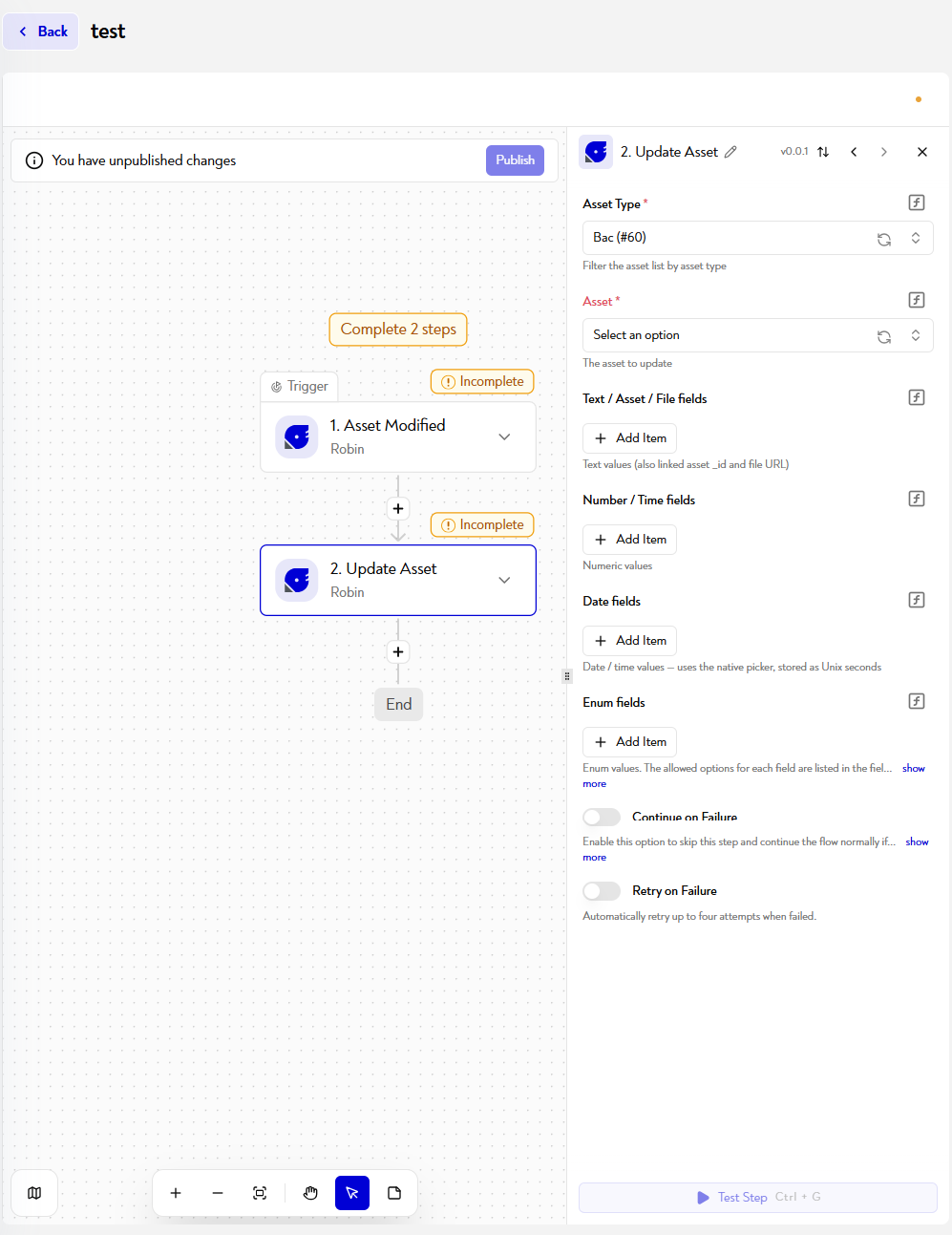
Role : Updates one or more fields of an existing Robin asset.
Configuration
- Select the targeted asset type: the list of available assets is filtered according to this type.
- Identify the asset to modify (required): select a specific asset or dynamically map the identifier from a previous step (ex. : Loop on Items item id).
- Complete the fields to update, organized by type:
- Text fields : text values.
- Number fields : numerical values.
- Date fields : date and time values, entered via the native selector or in ISO8601 (see https://en.wikipedia.org/wiki/ISO_8601).
- Enum fields : values from a closed list — the options available for each field are listed directly in the field label.
- For each field to modify, click on + Add Item, select the Field target and fill in the Value — static or dynamically mapped from a previous step.
Only fields explicitly added via + Add Item will be modified. The other fields of the asset remain unchanged.
🆕 From Robin version 2026.6:
It can now update assets of type order or task. The Field selector then offers, in addition to the custom fields for the type:
- for an order :
scheduling_id,name,id,due_date,precedence;- for a task :
asset_id,order,name,start_date,start_lock,duration,precedence,priority,quantity_to_produce,quantity_produced,routing.The behavior and validation of these properties are identical to those of Create Order and Create Task (precedence cycle detection, format of
routing, duration in hours, etc.).Archiving and device pairing remain available only through the Archive Asset, Pair Asset and Unpair Asset.
This is the most common action in a Robin workflow, used for example to update the status of a cosmetic bin after each manufacturing step, or to synchronize the actual end date of an MRO maintenance phase to a field usable by a third-party system.
¶ Archive Asset
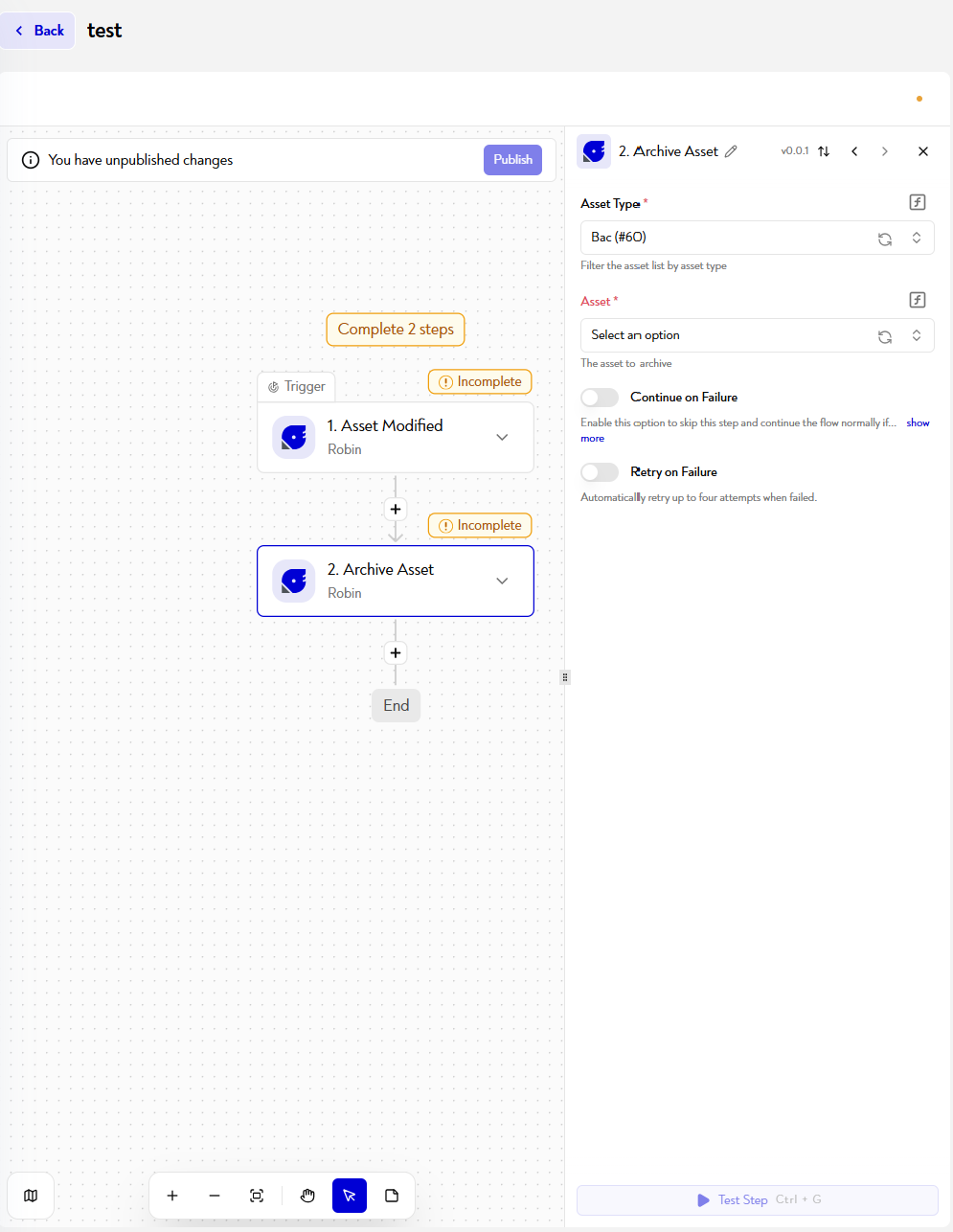
Role : Archive a Robin asset (equivalent to a logical deletion: the asset is no longer active but remains traceable).
Configuration
- Select the type of asset to archive: the list of available assets is filtered according to this type.
- Identify the targeted asset (required).
🆕 From Robin version 2026.6: this action also works for assets of type order.
This action makes it possible to automate the end of life of an asset without manual intervention, for example to archive an MRO tool as soon as it reaches its flight hours limit, or to remove a cosmetic container from the active pool after confirmation of its elimination at the end of the line.
¶ Pair Asset
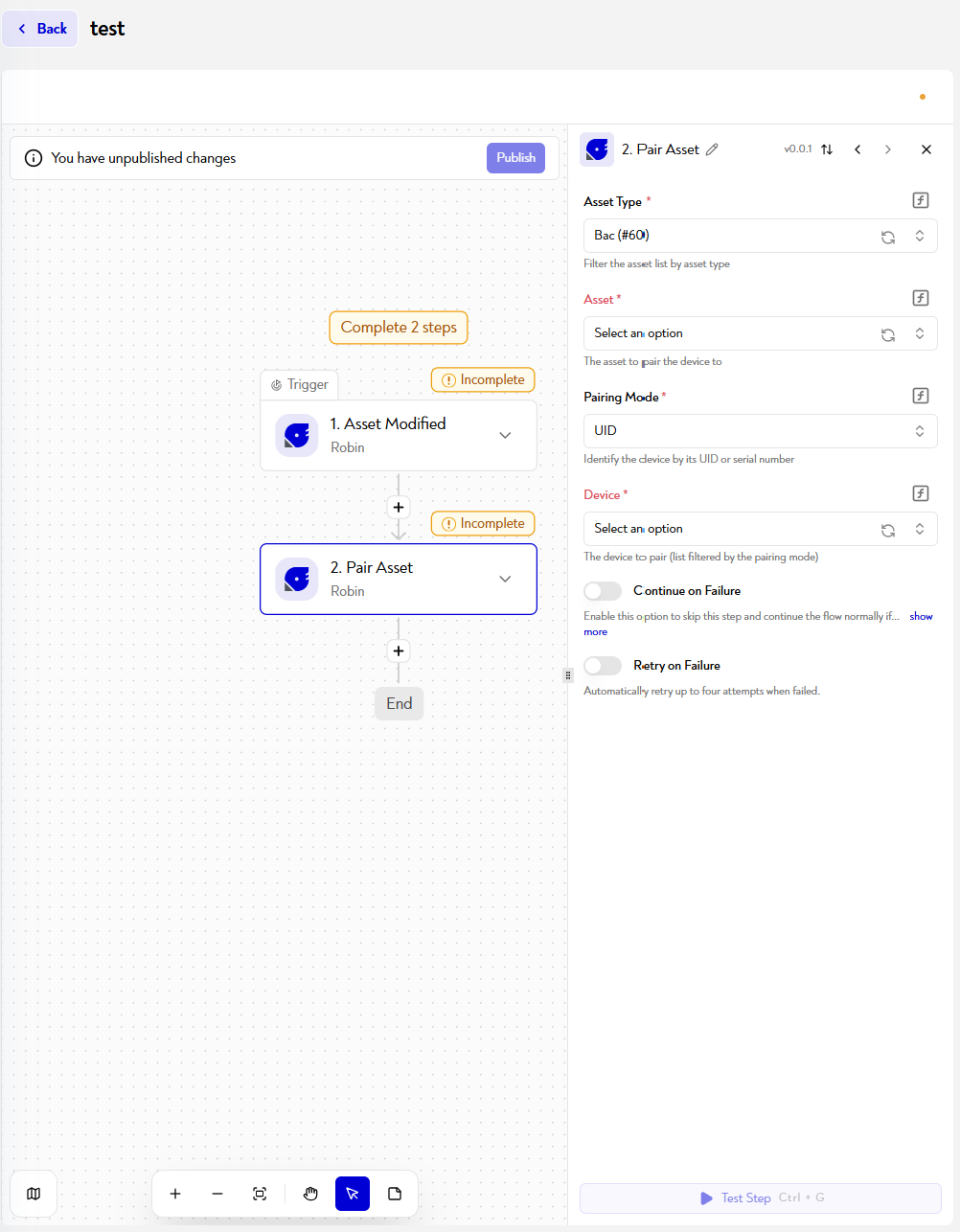
Role : Associates an IoT device (tag, anchor) with a Robin asset.
Configuration
- Select the target asset type.
- Identify the asset to associate the device with.
- Choose it Pairing Mode : Determines whether the device is identified by its UID or serial number.
- Select the device to pair (list filtered according to pairing mode).
🆕 From Robin version 2026.6: this action also works for assets of type order and task.
This connector is useful whenever an IoT device must be dynamically assigned to an asset, for example to automatically associate a BLE tag with a tool when it is received in the MRO workshop, or to pair a UWB tag to a cart when it is assigned to a cosmetic production line.
¶ Unpair Asset
Role : Unlinks the IoT device currently associated with a Robin asset.
Configuration
- Select the type of asset concerned.
- Identify the asset from which to unlink the device (required).
🆕 From Robin version 2026.6: this action also works for assets of type order and task.
This action naturally complements Pair Asset in equipment rotation scenarios, for example to release the tag of a tool sent for external maintenance in order to reassign it to a replacement tool, or to dissociate the tag from a cosmetic container when it is archived.
¶ Filter Assets
Role : Retrieves a filtered list of Robin assets based on defined criteria, for use in subsequent workflow steps.
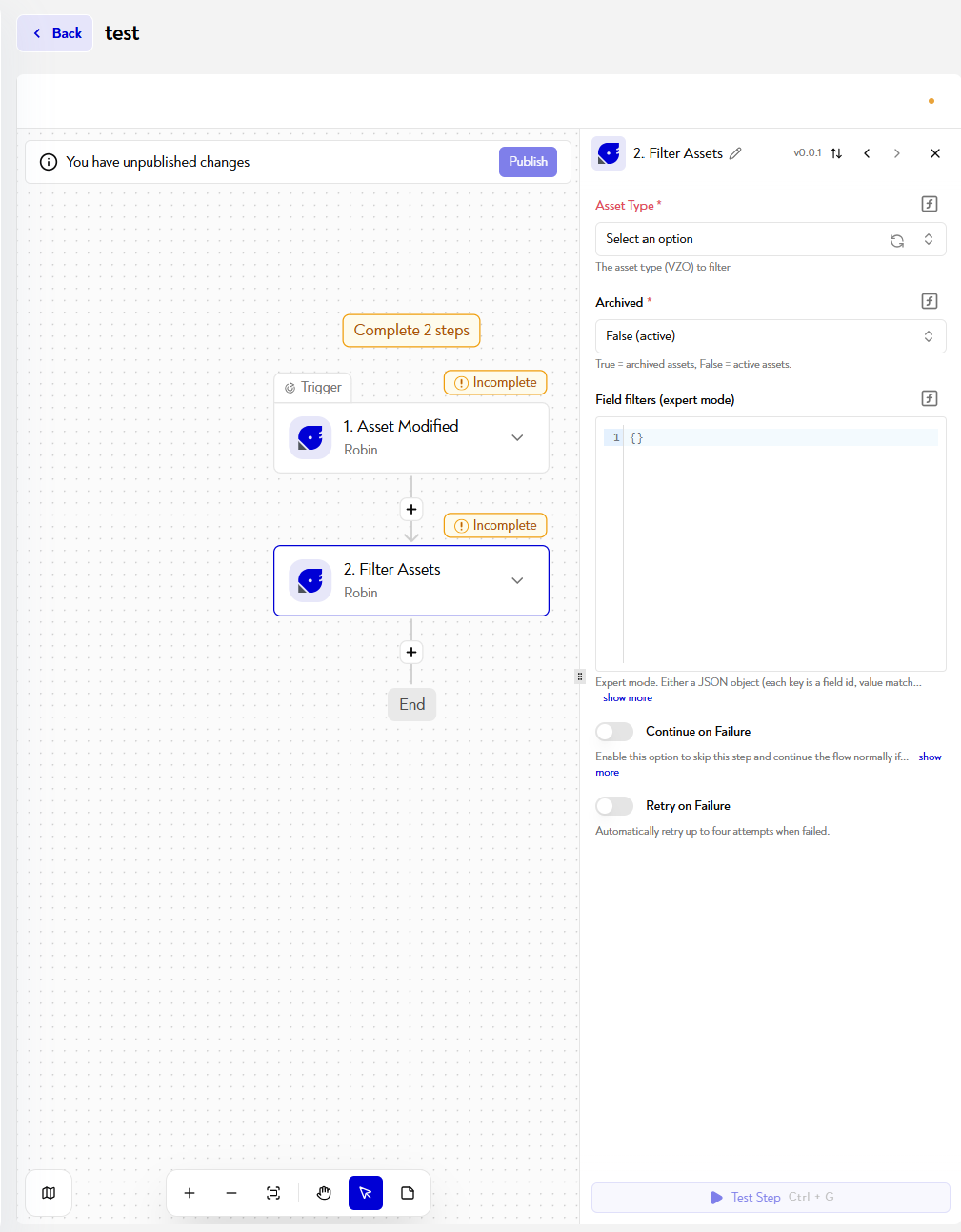
Configuration
- Select the type of asset to filter (VZO). 🆕 From version 2026.6, order and task types are also supported.
- Set archiving status:
False (active)= active assets,True= archived assets. - Inform the Field filters (expert mode) (optional): JSON object where each key is a field identifier and the value is the matching criterion. To leave
{}to filter only by type and status.
The field Field filters accepts a list with the following elements:
- Date (
date_X):{ "field", "from"?, "to"? }— at least one limit, ISO 8601 with time zone, both included. - Number (
num_X):{ "field", "min"?, "max"? }— at least one limit, both included. - Text (
text_X):{ "field", "operator", "value" }— operator ∈equals(equal) |contains(contains) |starts_with(starts with) |ends_with(ends with) |regex. Case insensitive by default.regexis validated on the server side; unsafe reasons are rejected. - Enumeration (
enum_X, more specialzoneandid):{ "field", "values": [...] }— at least one value.zone→ table of zone identifiers;id→ asset identifier table.
Example :
 [
    {
      "field": "date_30",
      "from": "2026-05-01T00:00:00Z",
      "to": "2026-05-31T23:59:59Z"
    },
    {
      "field": "num_1",
      "min": 10,
      "max": 50
    },
    {
      "field": "text_86",
      "operator": "contains",
      "value": "BIN"
    },
    {
      "field": "enum_1",
      "values": [
        "Container",
        "Plateau"
      ]
    },
    {
      "field": "zone",
      "values": [
        282,
        315
      ]
    },
    {
      "field": "id",
      "values": [
        "BIN-000154",
        "BIN-000155"
      ]
    }
  ]
🆕 Available from Robin version 2026.6: the advanced filters and additional data below are not available in earlier versions. Existing filter lists continue to work without modification.
Advanced filters (2026.6+)
- Logical combinations : Field filters can also be a JSON object, either a single filter or a group
{ "operator": "and" | "or", "conditions": [...] }or{ "operator": "not", "condition": {...} }. Groups can be nested (a maximum of 5 levels is recommended). A simple list remains equivalent to anandgroup. - Date (
date_X): new optionis_set(boolean).{ "field": "date_30", "is_set": false }returns assets with no value,is_set: truereturns those with any value.is_set: falsecannot be combined withfrom/to. At least one criterion amongfrom,toandis_setis required. - Enumeration (
enum_X,zone,id): new optionoperator—in(default) ornot_into exclude values.
Combined filter example : (type Container or Plateau) and date_30 from May 1, 2026 and not in zone 282.
{
  "operator": "and",
  "conditions": [
    {
      "operator": "or",
      "conditions": [
        { "field": "enum_1", "values": ["Container"] },
        { "field": "enum_1", "values": ["Plateau"] }
      ]
    },
    { "field": "date_30", "from": "2026-05-01T00:00:00Z" },
    {
      "operator": "not",
      "condition": { "field": "zone", "values": [282] }
    }
  ]
}
An invalid structure (unknown operator, conditions / condition missing, is_set: false combined with from / to, etc.) causes the action to fail.
Additional data returned (2026.6+)
position: asset location infields(latitude,longitude,altitude;altitudemay be null).- For assets of type order and task :
precedence(list ofasset_idvalues for predecessors). - For assets of type task :
routing(task routing, see Create Task).
This action is generally used before a loop Loop on Items, for example to retrieve all MRO tools whose status is "En attente de maintenance" in order to process them sequentially, or to list the active batches of a cosmetic line and calculate a load indicator in real time.
¶ Create Order
Role : Creates an order in a Robin scheduling plan without manual input in the scheduling widget.
🆕 Available from Robin version 2026.6. This feature is not available in earlier versions.
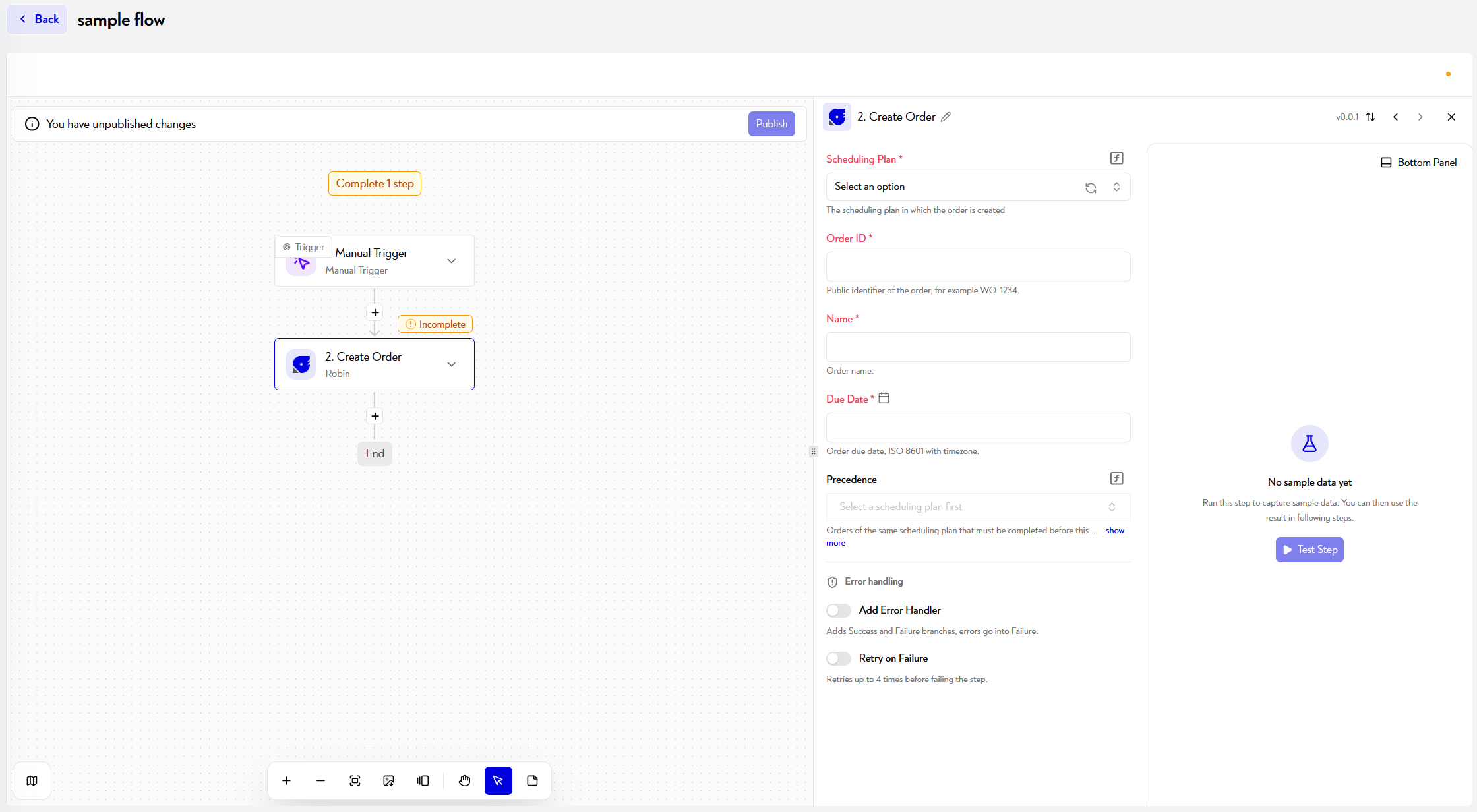
Configuration
- Select the schedule (
scheduling_id) in which to create the order: the list contains the site's schedules (required). - Enter the name of the order (
name, required). - Enter the public identifier of the order (required): it must be unique.
- Enter the due date (
due_date, required): ISO 8601 format with a time zone, for example2026-05-21T09:09:16.392Z. - Select the predecessor orders (
precedence, optional): a multiple-choice list of existing orders in the schedule. The order can start only after these orders are complete. - Enter custom fields (
additional_fields, optional): click + Add Item, select the Field target from the order fields (each field can be used only once) and enter the Value.
Data returned : success, asset_id (identifier of the created order, which can be reused as a predecessor in another step, for example) and name.
The action fails in particular if the schedule cannot be found, the identifier is empty or already in use, the due date has no time zone, a predecessor does not exist in the schedule, the predecessors would create a cyclic dependency, or a custom field is unknown, duplicated, or incompatible with its value.
This is the only way to create an order from a workflow (Create Asset does not support it). This action is typically used to generate orders to be scheduled automatically, for example when an order is received in the ERP or a form is submitted. To update the order later, use Update Asset.
¶ Create Task
Role : Creates a task (operation) linked to an existing order in a Robin scheduling plan.
🆕 Available from Robin version 2026.6. This feature is not available in earlier versions.
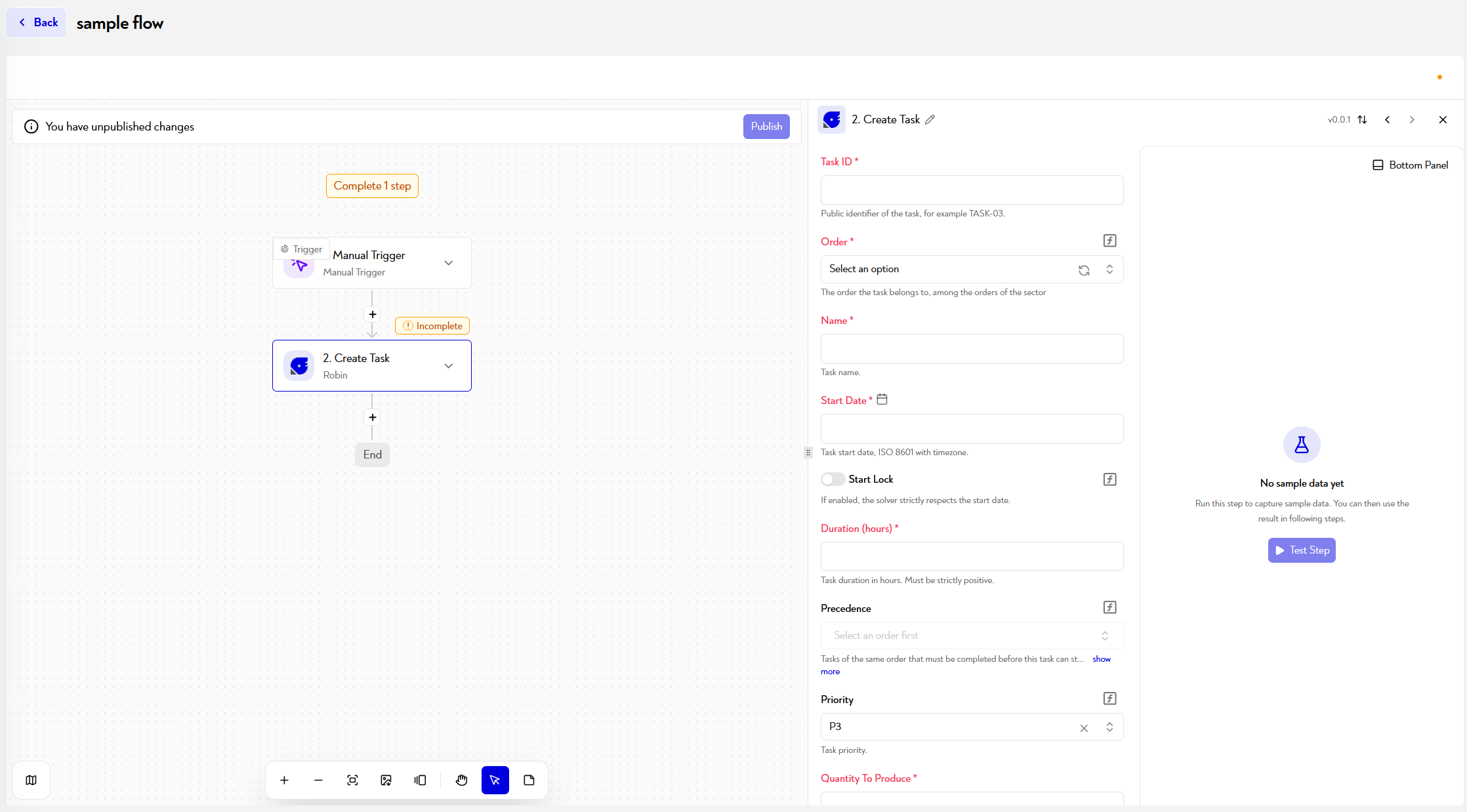
Configuration
- Enter the public identifier of the task (
asset_id, required): it must be unique. - Select the order (
order, required) to which the task belongs, from the existing orders. - Enter the name of the task (
name, required). - Enter the start date (
start_date, required): ISO 8601 format with a time zone. Withstart_lockenabled (disabled by default), the solver strictly observes this date. - Enter the duration (
duration, required): in hours, as a strictly positive number (e.g.2.5). - Select the predecessor tasks (
precedence, optional): only tasks from the same order. - Choose the priority (
priority, optional):P0,P1,P2orP3(defaultP3). - Enter the quantity to produce (
quantity_to_produce, required) and, if necessary, the quantity already produced (quantity_produced,0by default). - Enter the routing (
routing, required): the JSON object described below. - Enter custom fields (
additional_fields, optional) via + Add Item, as for Create Order.
Routing structure (routing)
{
  "stock": {
    "consumption": [ { "asset_id": "RAW-001", "qty": 10 } ],
    "production":  [ { "asset_id": "FG-001", "qty": 5 } ]
  },
  "resources": [
    {
      "vzo_id": 131,
      "qty": 1,
      "shared_with": ["TASK-02"],
      "conditions": [ { "id_field": "enum_5", "choices": ["TT4", "TT5"] } ],
      "assignments": [ { "asset_id": "687916e538a5fe9baf40b3c8", "locked": true } ]
    }
  ]
}
stock: stock consumed (consumption) and/or produced (production) by the task. Each entry requiresasset_id(stock asset) andqty.resources: list of resource slots. Each slot requiresvzo_id(resource type) andqty. Options:shared_with(other tasks sharing the slot),conditions(accepted values for an enumeration field on the resource) andassignments(assigned resources;locked: true= assignment enforced by the solver,false= suggestion only).
Data returned : success, asset_id (identifier of the created task) and name.
The action fails in particular if the order cannot be found, the identifier is empty or already in use, the date has no time zone, the duration is not strictly positive, the priority is invalid, a predecessor does not belong to the same order, the predecessors would create a cyclic dependency, or the routing is not a valid JSON object (unknown stock or resource, missing required field).
This is the only way to create a task from a workflow (Create Asset does not support it). It is typically used with Create Order to generate the operations of a production order automatically. To update it later, use Update Asset.
¶ Robin API
Role : Calls a Robin API endpoint directly from a workflow without using a dedicated action. Useful for covering a need that no Robin action supports yet.
🆕 Available from Robin version 2026.6. This feature is not available in earlier versions.
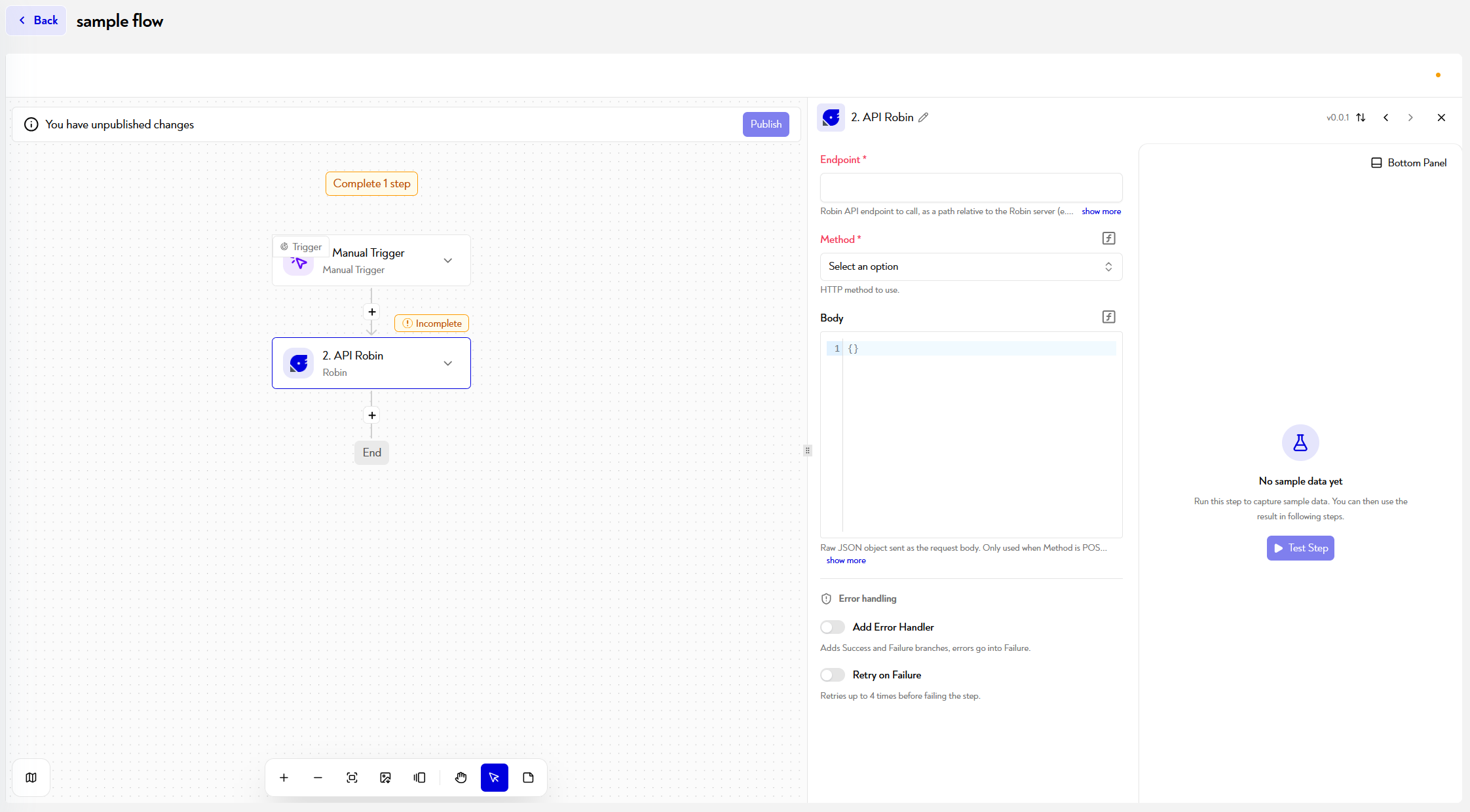
Configuration
- Enter the endpoint (required): a relative path to the Robin server, for example
/public/v2/sectors/123/assets/153. An empty endpoint or one beginning withhttp:///https://is rejected. Path parameters such assector_idare not added automatically: include them in the endpoint. - Choose the method HTTP (required):
GET,POST,PATCH,PUTorDELETE. - Enter the body (optional): a JSON object sent with the request. It is used only for
POST,PATCHandPUT(ignored forGETandDELETE) and must be a valid JSON object.
The Robin server address and authentication are managed automatically using the same connection as the other Robin connectors: no host or authentication header needs to be entered.
Example
{
  "endpoint": "/public/v2/sectors/123/assets/153/search",
  "method": "POST",
  "body": {
    "archived": false,
    "field_filters": [
      { "field": "text_86", "operator": "contains", "value": "BIN" }
    ]
  }
}
Data returned : status_code (HTTP status code returned by Robin), body (response, in JSON when possible) and headers.
This action passes Robin's response through unchanged : an HTTP status code
4xxor5xxis not considered a step failure. To handle an error, teststatus_codein a subsequent step. The step fails only because of invalid input (endpoint, method, or body), a connection issue with the Robin server, or invalid Robin credentials.
This page does not seem clear to you or do you need help? Do not hesitate to contact us at support@zozio.tech !