Tables are useful for maintaining state between multiple executions of a workflow, for example to track a counter, maintain a reference list, or store intermediate results that can be reused by other workflows.
¶ How to create a table
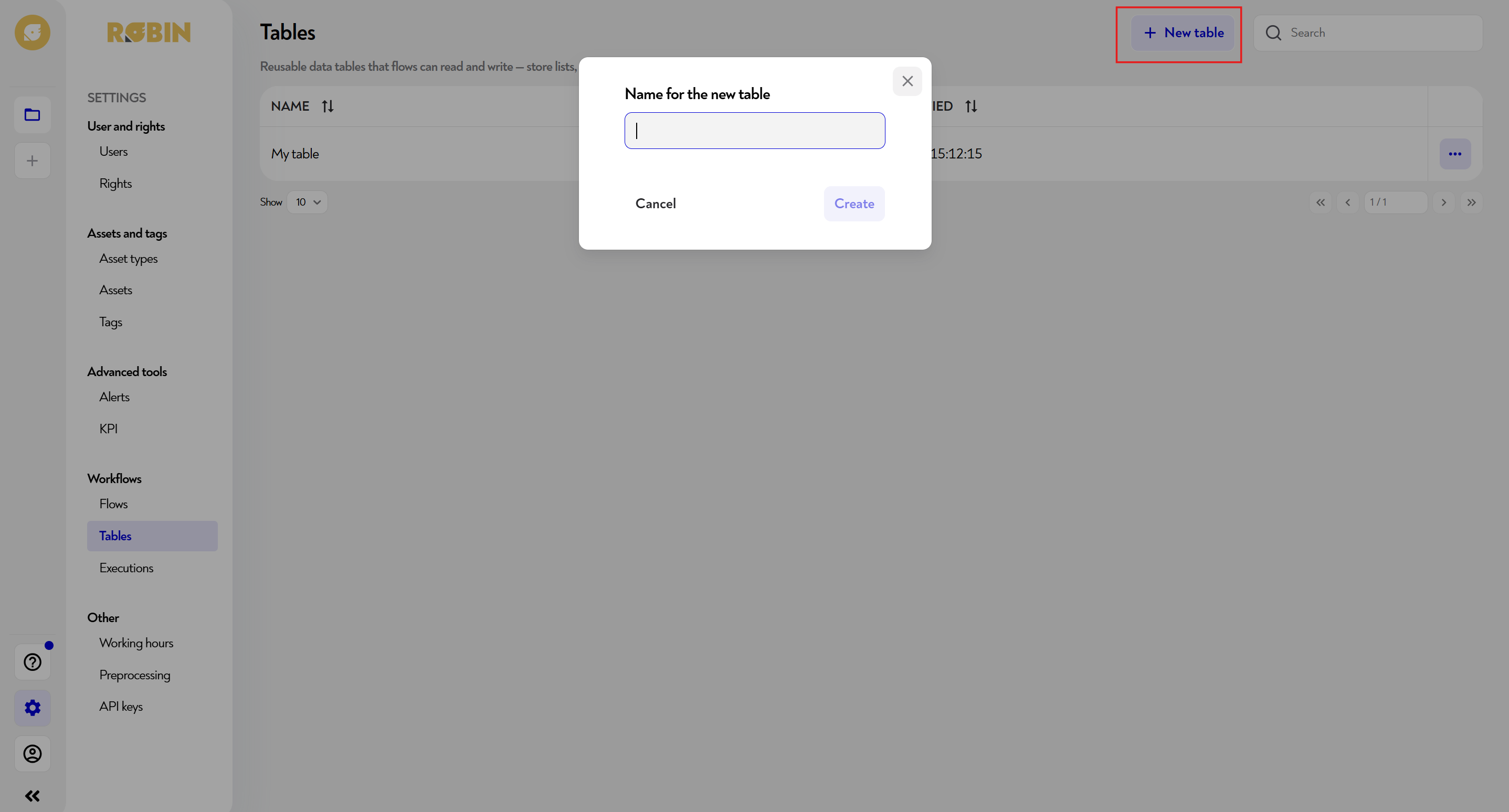
From the left side menu, navigate to Workflows > Tables. The list of existing tables is displayed, with their name and their last modification date.
To create a new table, click + New table top right. A window opens and asks you for a name - enter an explicit name, then click on Create. The table is immediately available in the list and can be opened to define its columns and import data
¶ How to edit a table
This tab represents a real database. It allows you to access your feed data. You can create and store lists, matches or any shared dataset.
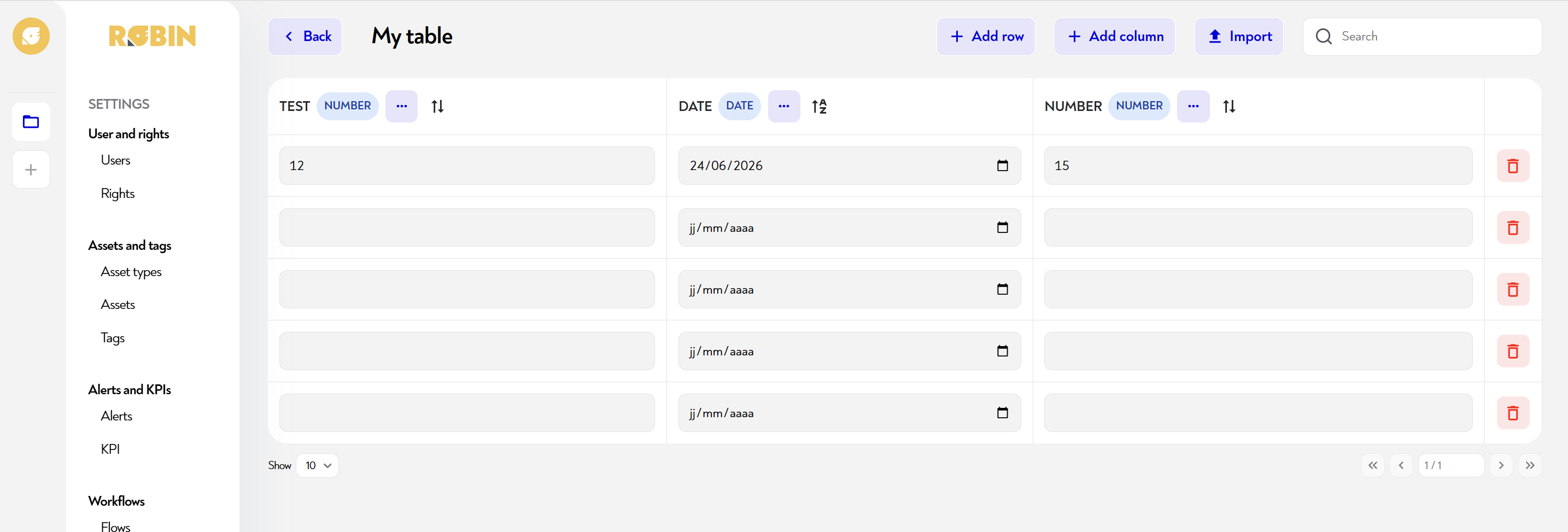
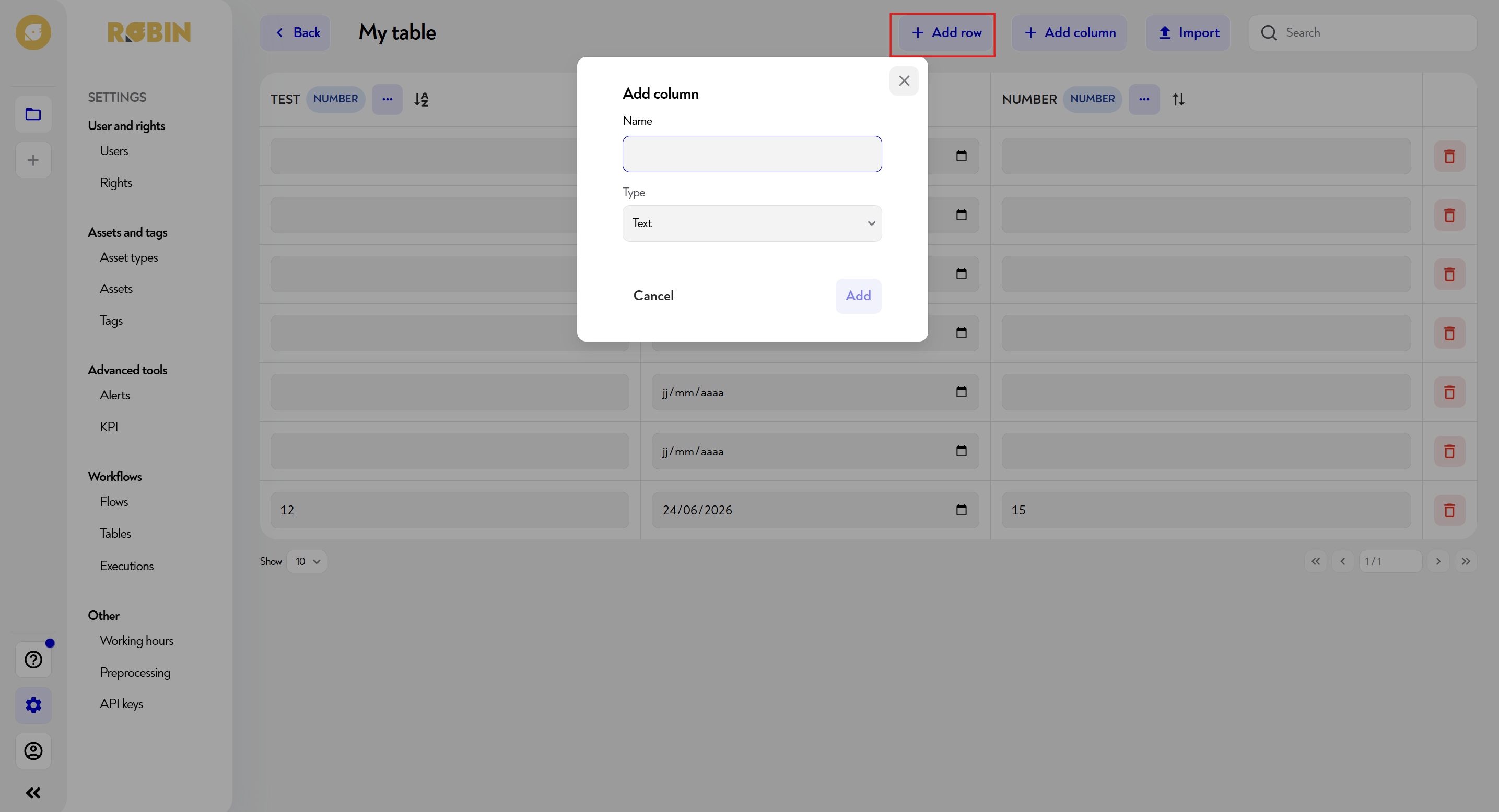
You also have the freedom to add columns and lists by clicking on the blue buttons at the top right of the table.
¶ How to import data
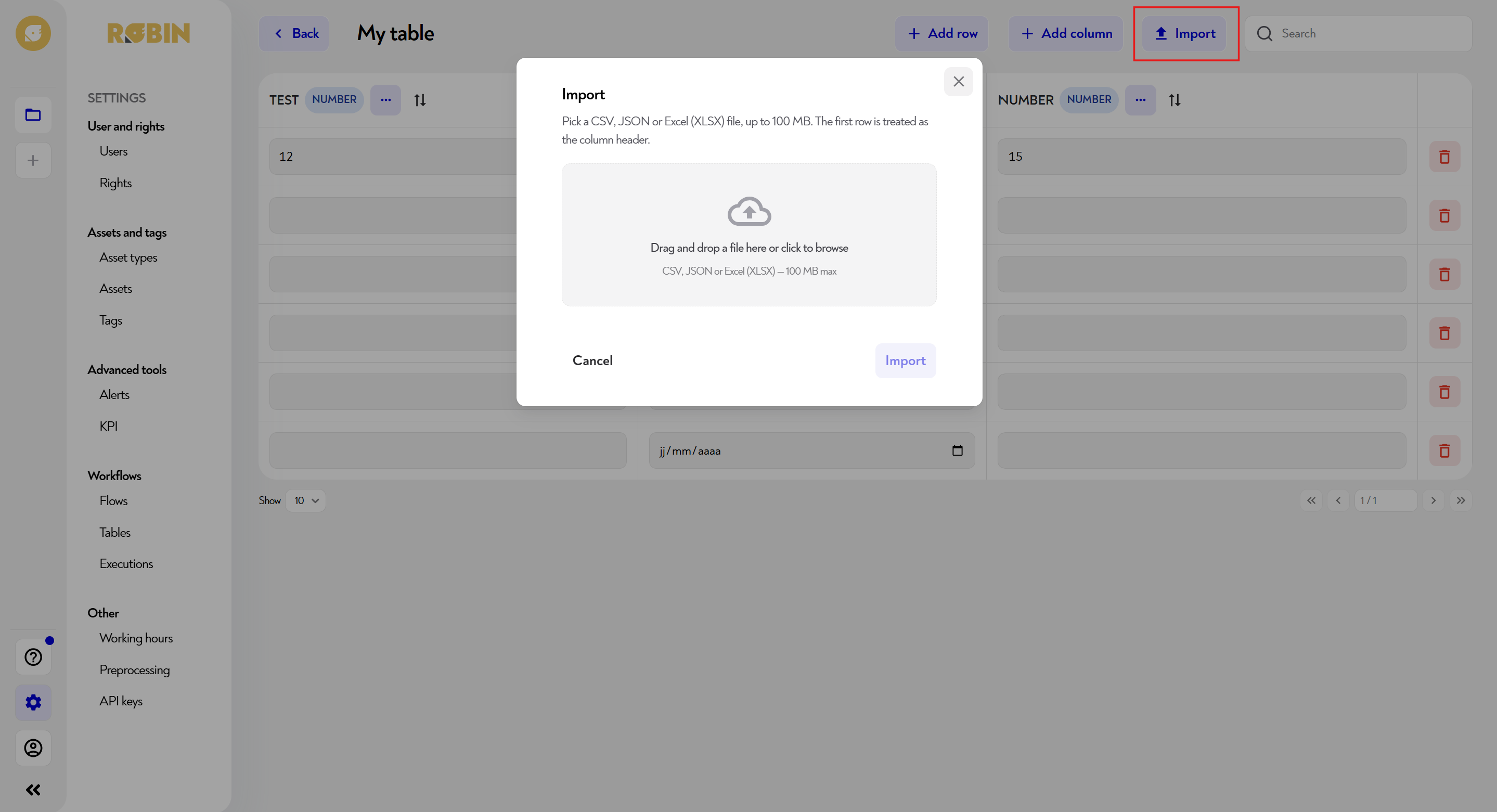
From the table editor, click on Import top right. A window opens: drag and drop your file into the area provided or click to browse it from your file explorer.
Accepted formats are CSV, JSON et Excel (XLSX), within the limit of 100 MB. The first line of the file is automatically interpreted as the column header — make sure it matches the desired column names in the table.
Once the file is selected, click on Import to start the import.
This page does not seem clear to you or do you need help? Do not hesitate to contact us at support@zozio.tech !